Create knowledge visuals, campaign concepts, multi-object scenes, and everyday images with ByteDance Seed’s reasoning-first model. Choose an automatic size, a ready-made frame, or custom dimensions, then download the result as PNG.
Auto 2K, 3K & 4K
6 frame presets
Custom dimensions
PNG output
Create with Seedream 5.0 Lite
Describe the subject, purpose, relationships, visual treatment, and final frame you need.
These examples were created specifically for this page with the same Seedream 5.0 Lite text-to-image endpoint used by the workbench.
Example result
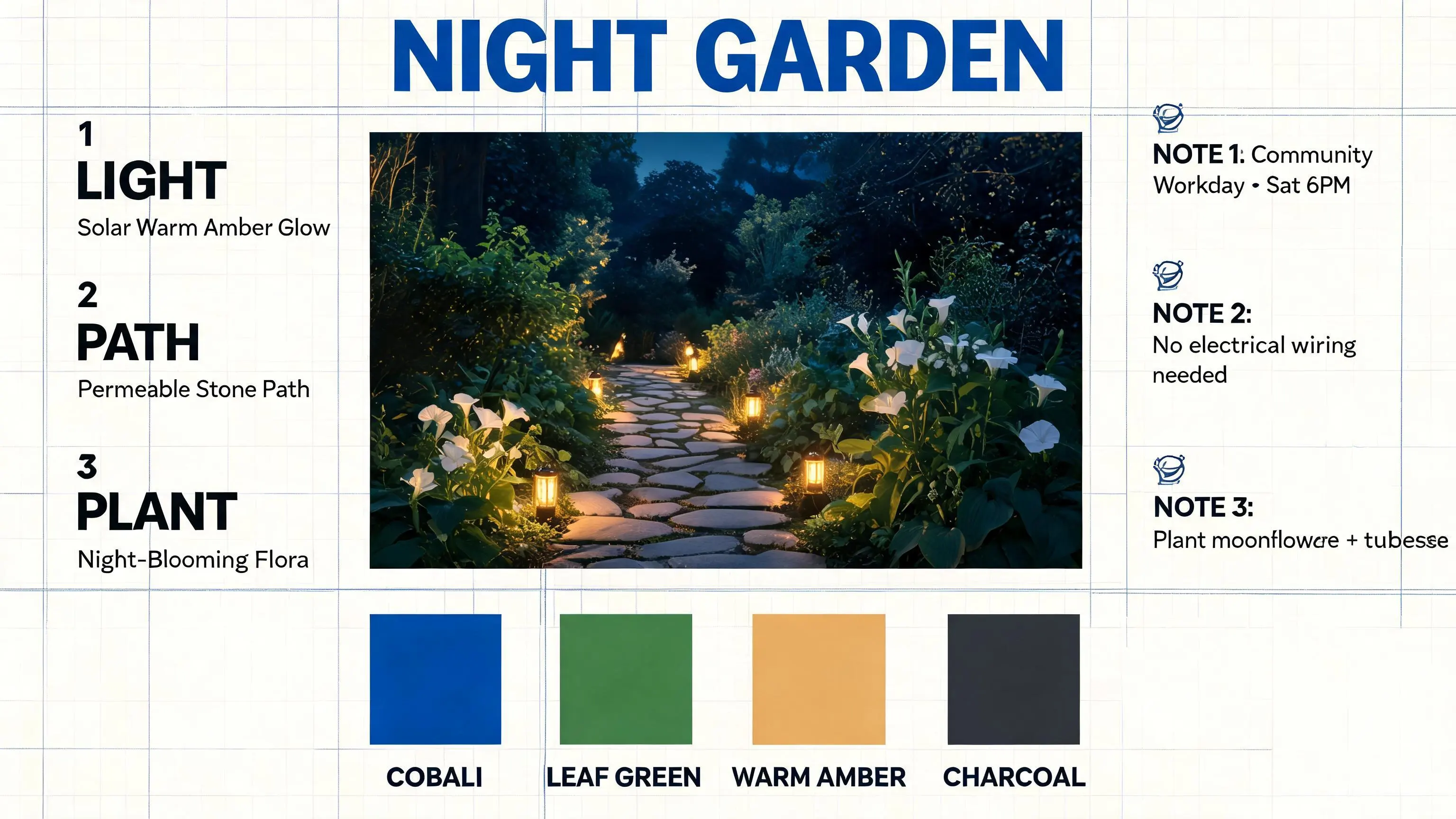
A visual planning board built from a timeline, material swatches, project notes, and a defined information hierarchy.
Prompt
Create a polished 16:9 visual planning board for a fictional community project called “NIGHT GARDEN”. Use a warm off-white canvas with a dark indigo grid. Arrange one large central concept image, a three-step timeline on the left, four material swatches along the bottom, and three compact notes on the right. Exact visible text: “NIGHT GARDEN”, “LIGHT”, “PATH”, and “PLANT”. Use cobalt blue, leaf green, warm amber, and charcoal. Keep the hierarchy clear, the text large, and the layout original. No real brand logos.
01 · VISUAL REASONING
Reason through complex scenes
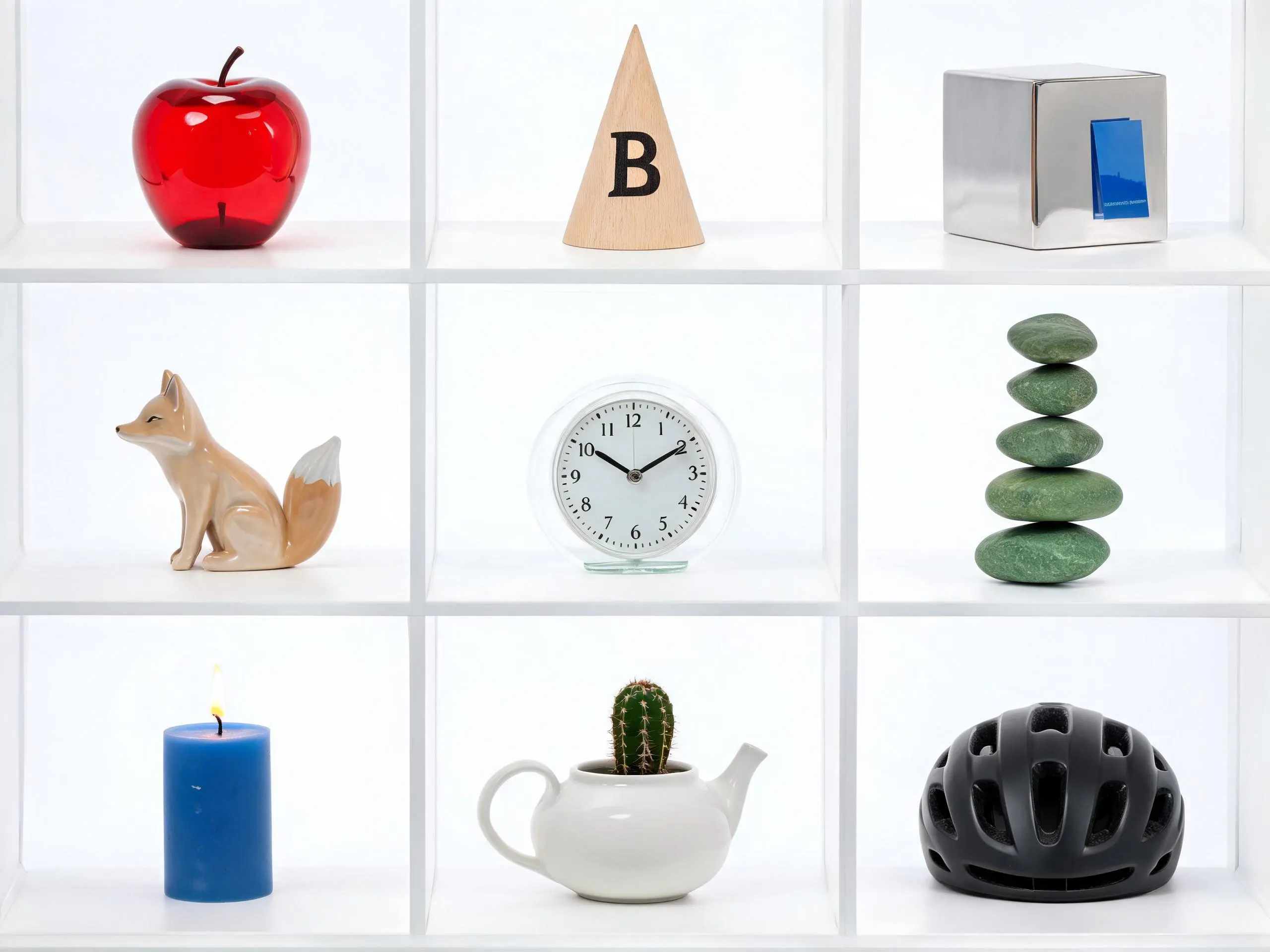
Describe how objects relate, where they sit, and which attributes belong to each one. Seedream 5.0 Lite can use those relationships to build multi-object scenes with clearer spatial logic and more deliberate composition.
Object relations
Spatial briefs
Multi-subject scenes
Visual reasoning
Prompt
Create a front-facing 4:3 studio scene with a three-by-three display cabinet. Each cell contains exactly one object. Top row: a red glass apple, a pale wooden cone marked “B”, and a silver cube reflecting a blue card. Middle row: a ceramic fox facing left, a transparent clock showing 10:10, and exactly five green stones stacked in a tower. Bottom row: a blue candle with a yellow flame, a small cactus inside a white teapot, and a black bicycle helmet. Use soft neutral studio light, clean dividers, accurate object placement, and no additional text.
02 · KNOWLEDGE VISUALS
Turn ideas into visual structure
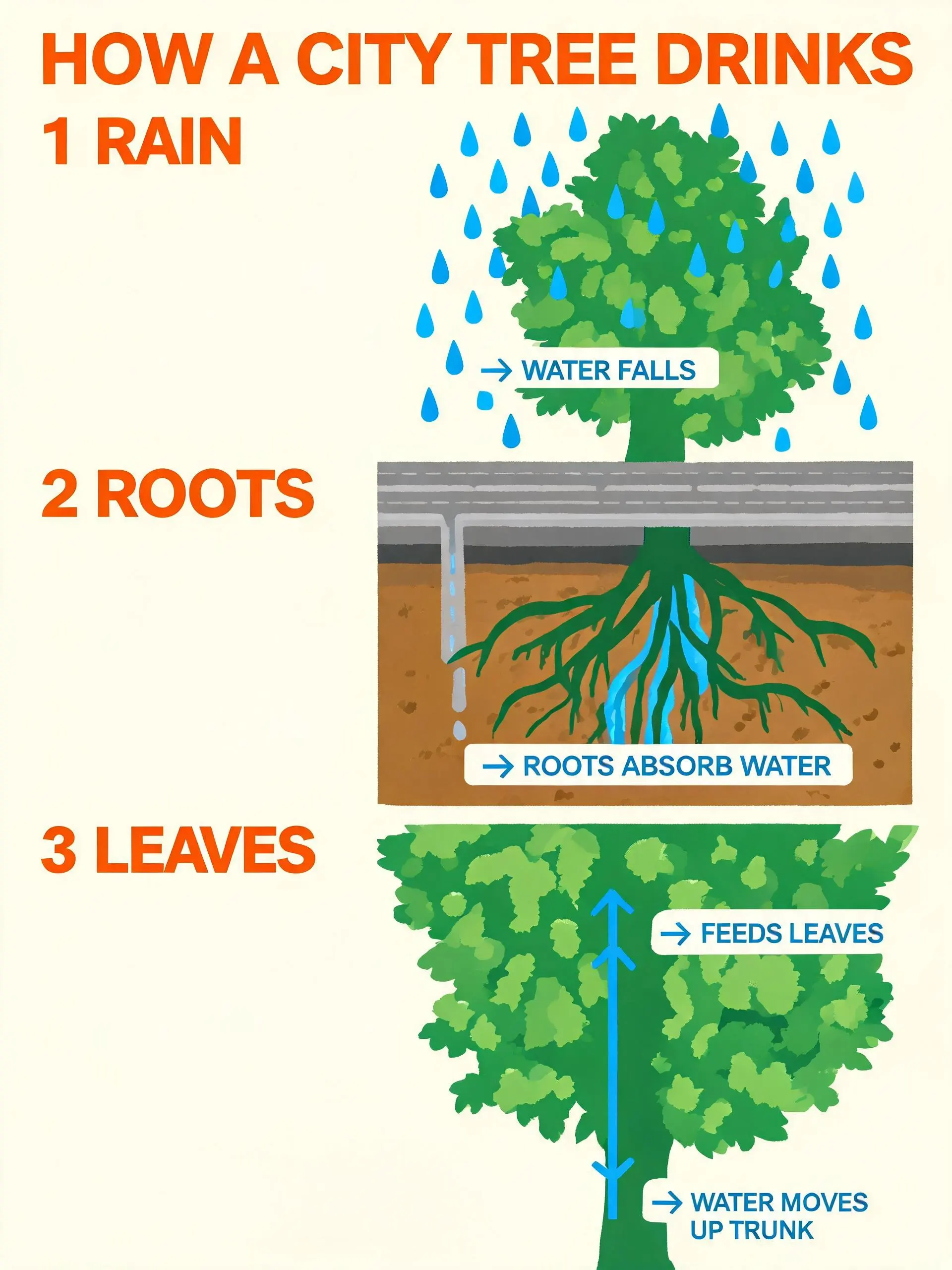
Transform a concept into an educational graphic, presentation visual, campaign map, or simple explainer. Define the hierarchy, the key labels, and the relationship between sections so the result communicates one clear idea.
Education
Presentations
Explainable visuals
Knowledge visualCampaign map
Prompt
Design a vertical 3:4 educational poster titled “HOW A CITY TREE DRINKS”. Use three numbered sections: “1 RAIN”, “2 ROOTS”, and “3 LEAVES”. Show one simplified street cutaway with soil, roots, a drainage channel, trunk, and canopy. Connect the sections with clear blue arrows and short labels. Use a cream background, forest green forms, cobalt water lines, and warm orange callouts. Keep all wording large and concise. Use illustrative demo information only and no city logo.
03 · EVERYDAY CREATION
Explore more creative directions
Move from a product idea, content brief, or seasonal concept to a polished visual direction. Use broader automatic size options for social images, ecommerce concepts, covers, posters, and campaign exploration.
Products
Social content
Covers
Everyday creationStyle exploration
Prompt
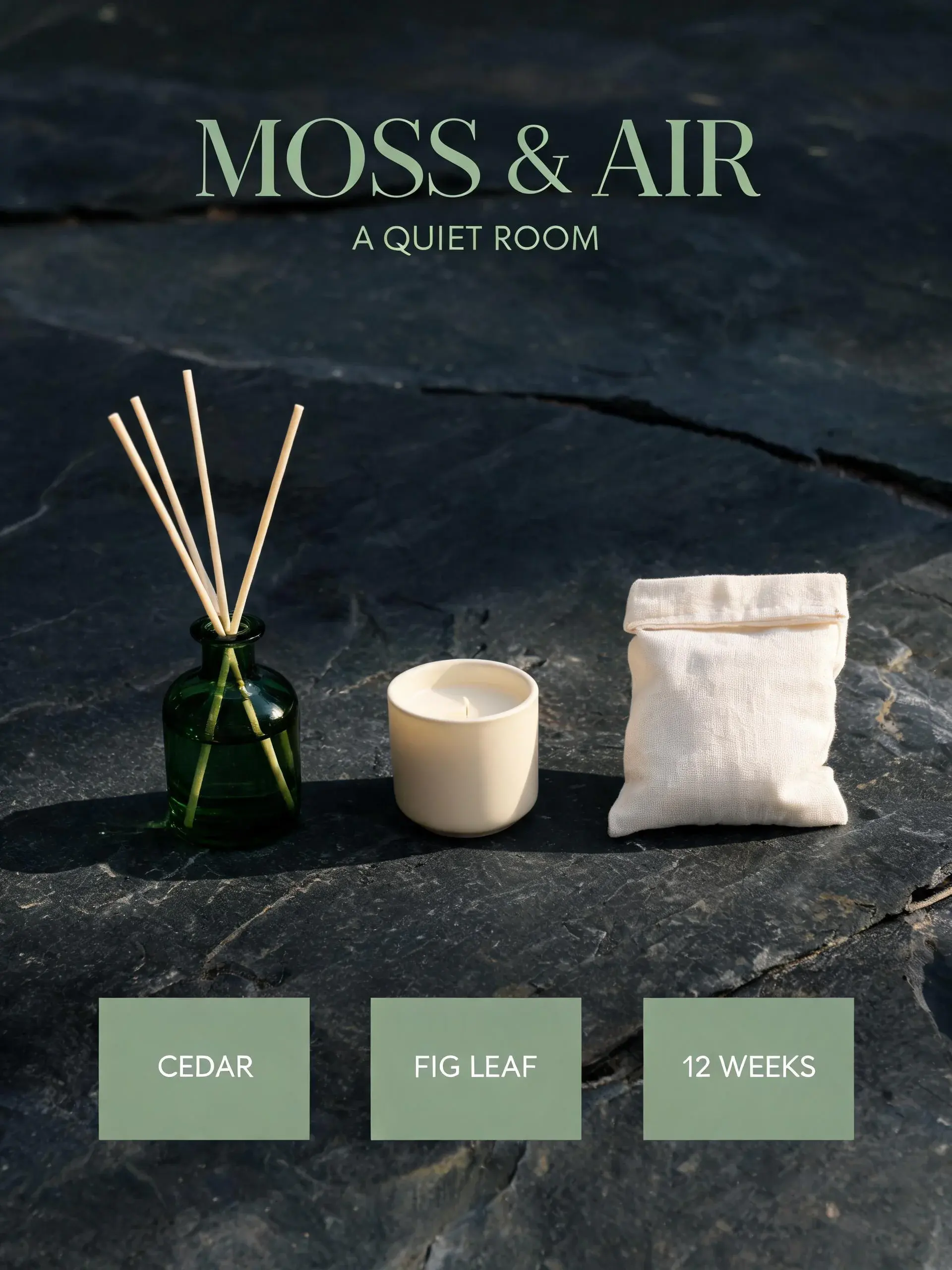
Create a vertical 3:4 ecommerce campaign visual for a fictional home fragrance set named “MOSS & AIR”. Show one green glass diffuser bottle, one cream ceramic candle, and one folded linen pouch on dark stone. Exact copy: “MOSS & AIR” and “A QUIET ROOM”. Add three compact benefit tags: “CEDAR”, “FIG LEAF”, and “12 WEEKS”. Use deep pine green, muted sage, warm ivory, realistic soft daylight, and clean premium spacing. No existing brand logos.
Describe relationships, not keyword lists
Seedream 5.0 Lite works well with clear natural language. Start with the subject and goal, then explain the setting, the relationships between elements, the visual treatment, and the frame you need.
1. Name the subject and purpose
State what the image is for, who or what appears, and the main action or message.
2. Describe positions and relationships
Explain what sits left, right, above, behind, inside, or next to something else. Assign colors, materials, or actions to each subject.
3. Add style, camera, and light
Choose the visual language, viewpoint, depth, light direction, color mood, and important material details.
4. Specify text and the final frame
Put exact visible copy in quotation marks, keep it short, and choose the automatic size, frame preset, or custom dimensions that fit the final use.
Prompt example
Prompt
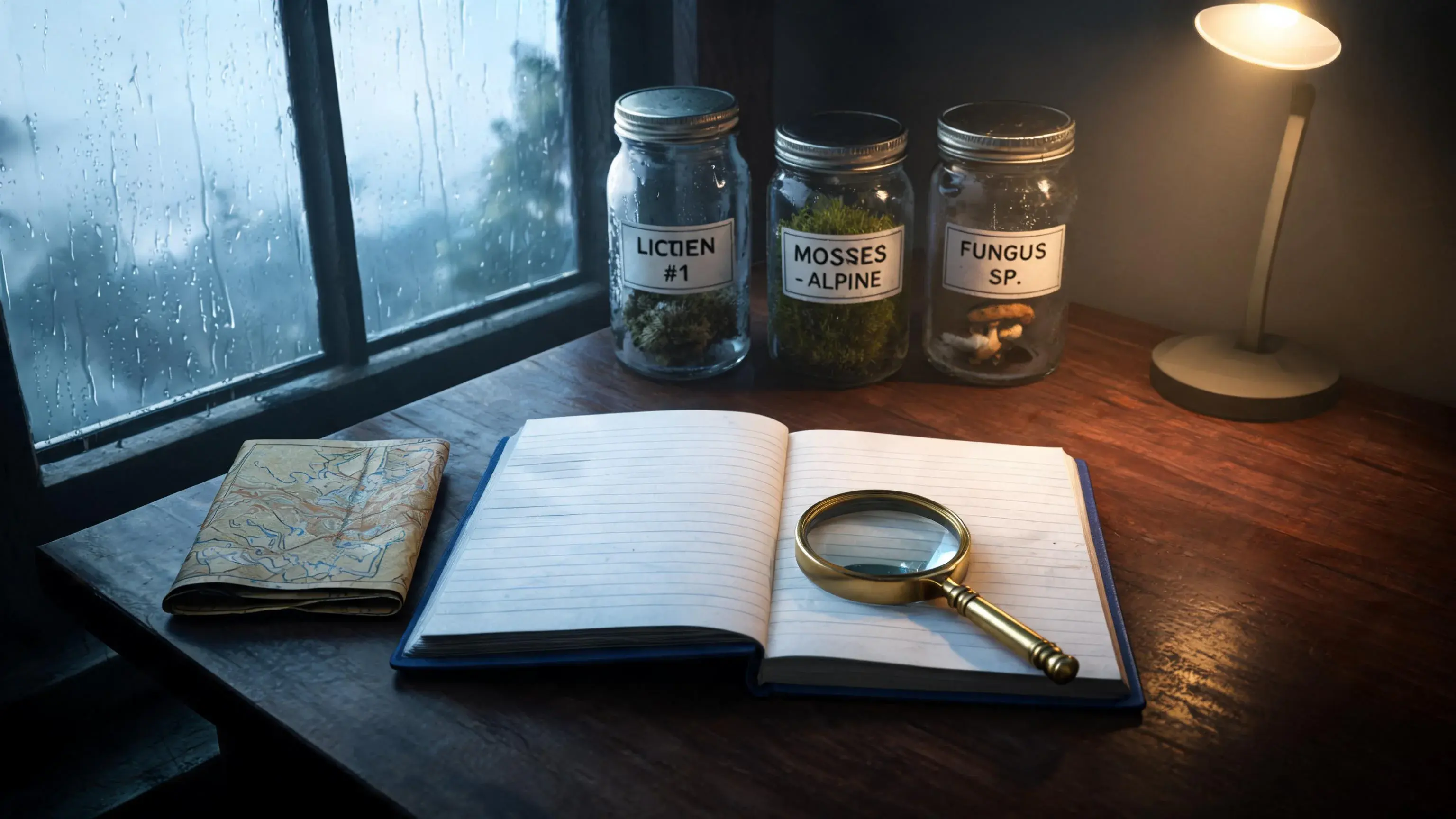
Create a 16:9 editorial photograph of a quiet research desk beside a rain-streaked window. Place an open blue field notebook in the center, a brass magnifier partly over the lower-right page, three labeled specimen jars behind it, a folded topographic map to the left, and one small desk lamp in the far-right background. The lamp casts warm light from right to left while cool daylight enters from the window. Use realistic glass, paper, brass, and wood textures, a slightly elevated camera angle, and no visible brand marks.
Seedream 5.0 Lite settings
Choose one automatic size, frame preset, or custom dimension set. Seedream 5.0 Lite returns PNG images and starts with Auto 2K by default.
Setting
Available options
Automatic sizes
Auto 2K, Auto 3K, Auto 4K
Square frames
1:1, 1:1 HD
Portrait frames
3:4, 9:16
Landscape frames
4:3, 16:9
Custom dimensions
Enter a supported width and height
Output format
PNG
Default
Auto 2K, PNGDefault
Automatic sizes, frame presets, and custom dimensions share one canvas control. Model by ByteDance Seed.
Seedream 5.0 Lite or Seedream 5.0 Pro?
Choose Lite for flexible everyday creation, visual reasoning, and broader automatic size options. Choose Pro for professional visual production, denser design work, multilingual layouts, and deliberate photographic direction.
Current model
Seedream 5.0 Lite
Best for visual reasoning, knowledge graphics, multi-object scenes, campaign exploration, and everyday content.
Auto 2K · Auto 3K · Auto 4K · Custom sizes · PNG
Seedream 5.0 Pro
Best for high-density visual communication, multilingual design, realistic materials, and detailed professional briefs.
Seedream 5.0 Lite is a multimodal image generation model developed by ByteDance Seed. It focuses on understanding creative intent, reasoning through visual relationships, using world knowledge, and turning detailed natural-language briefs into coherent images.
Yes. Enter a text prompt in the workbench, choose an automatic size, frame preset, or custom dimensions, then generate and download the PNG result online. You can begin with an example or write a visual brief of your own.
The workbench supports Auto 2K, Auto 3K, Auto 4K, 1:1, 1:1 HD, 3:4, 9:16, 4:3, and 16:9. You can also enter a supported custom width and height for a specific layout or publishing format.
Seedream 5.0 Lite returns PNG images in this workbench. The default setting is Auto 2K with PNG output, so every result is ready to download in the same format without an extra format choice.
Write in clear natural language. Name the subject and purpose, describe the setting and the relationships between elements, then add style, camera, light, exact visible text, and the final frame.
Lite is a flexible choice for reasoning-led everyday creation and offers Auto 2K, 3K, and 4K options. Pro is designed for more demanding professional visuals, including dense layouts, multilingual design, and highly directed photographic work.
Create your first Seedream 5.0 Lite image
Start with an example prompt or describe your own visual idea, then choose the canvas that fits the final use.