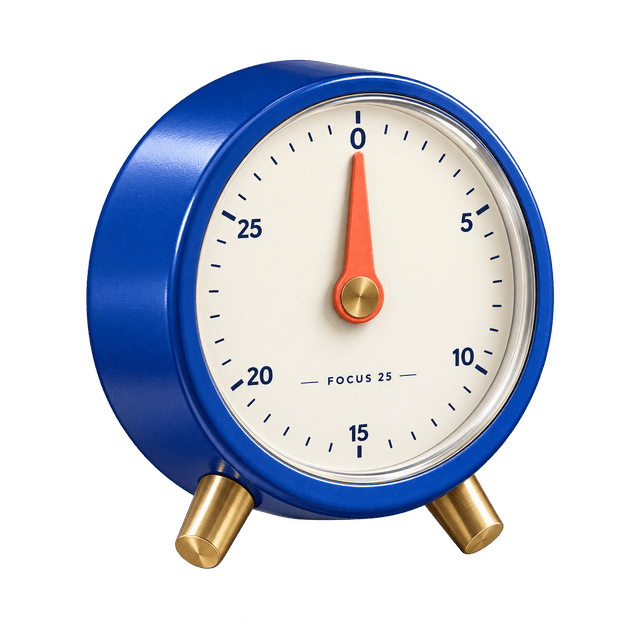
Create text-led graphics, realistic product visuals, UI concepts, and precise image edits with OpenAI’s GPT Image 2. Start from a written brief or visual references, then choose the canvas, quality, background, and export format that fit the final use.
Text & image workflows
Flexible canvas
Auto–High quality
JPEG · PNG · WebP
Create with GPT Image 2
Start from a prompt or visual references, then choose the output controls that fit the asset you need.
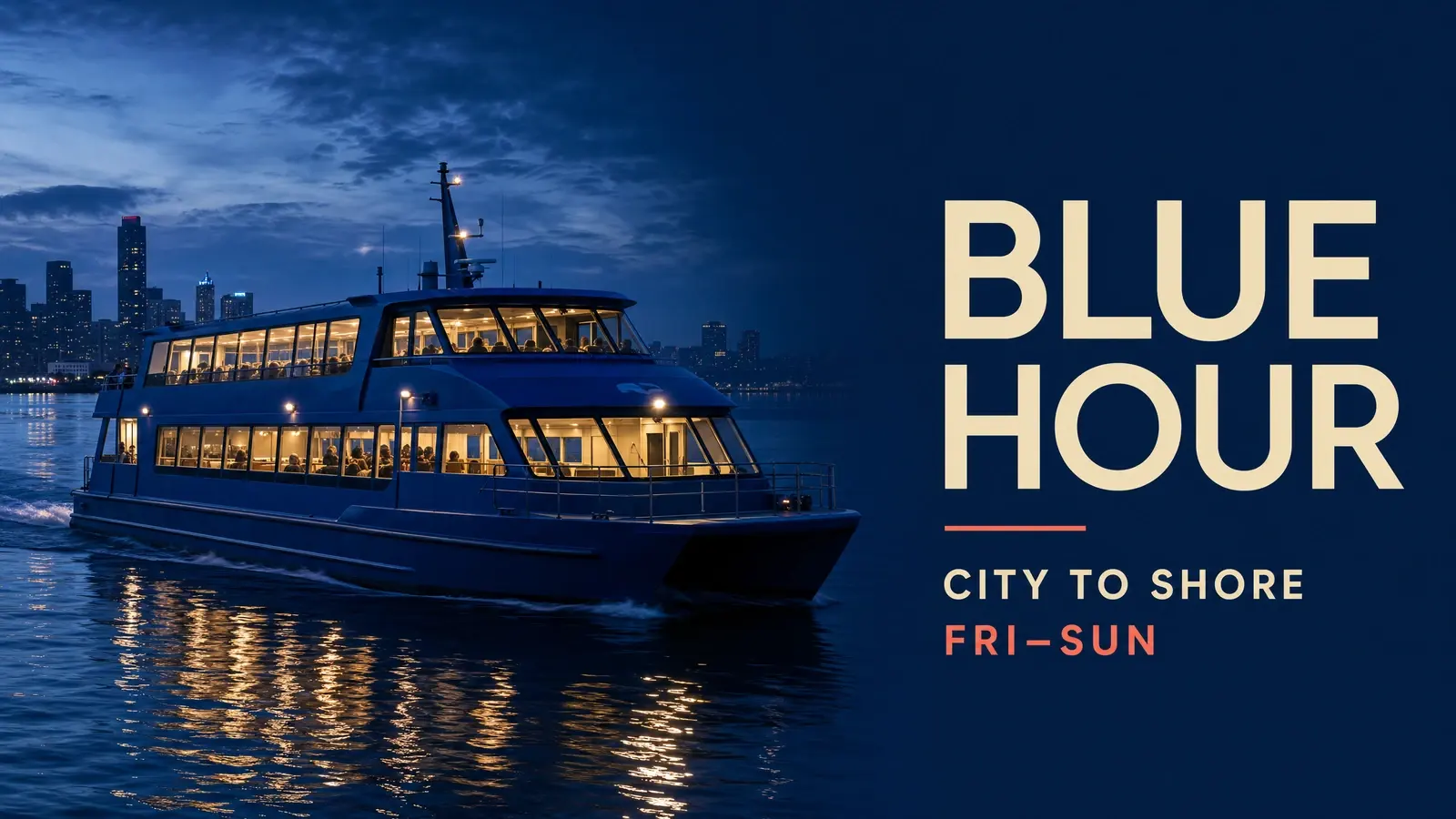
Blue Hour CampaignFirst-party GPT Image 2 output · Aug 27, 2026
FIRST-PARTY EXAMPLES
From a structured brief to a usable visual
These first-party examples show how GPT Image 2 handles art-directed layouts, photoreal materials, concise text, UI concepts, and reference-guided edits.
Example result
One structured prompt combining a realistic scene, art direction, and short exact copy.
Prompt
Create one polished 16:9 launch campaign image for a fictional night ferry service called “BLUE HOUR”. Show a photoreal cobalt-blue passenger ferry crossing calm dark water at blue hour, with warm cabin lights reflected across the water. Keep the ferry across the left two-thirds and reserve the right third for a clean editorial text block. Visible copy, exactly once: “BLUE HOUR”, “CITY TO SHORE”, and “FRI–SUN”. Use deep navy, cobalt, warm cream, and one small coral accent. One coherent poster, no collage, no real logos, and no extra text.
STRUCTURED DESIGN
Turn a brief into a designed visual
Give GPT Image 2 the intended use, content hierarchy, exact copy, and visual constraints. It can build posters, explainers, campaign graphics, UI concepts, and other compositions where the words and the layout need to work together.
Best for posters, infographics, ads, presentation visuals, and text-led concepts.
Posters
Infographics
Exact copy
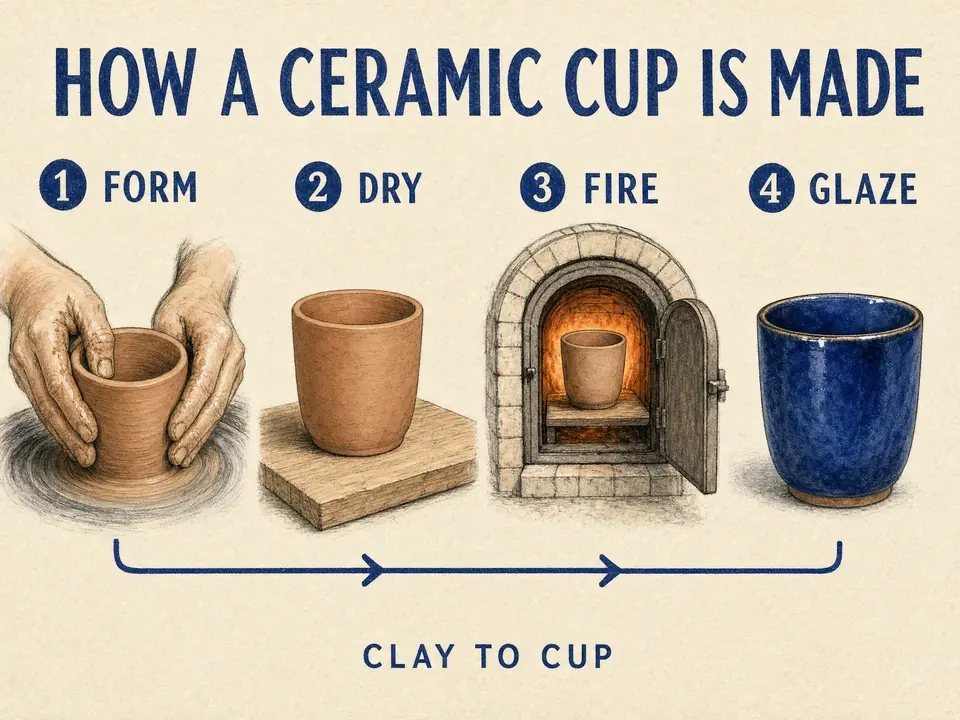
Structured designA four-step visual hierarchy built for quick reading rather than decorative density.
Prompt
Create a 4:3 educational poster titled “HOW A CERAMIC CUP IS MADE”. Show four numbered steps: FORM, DRY, FIRE, GLAZE, with one simple illustration and one short label for each. Use warm white paper, cobalt linework, terracotta accents, a clear reading order, and no additional text.
PHOTOREAL PRODUCTION
Direct the materials, light, and finish
Describe the product, environment, camera position, material behavior, and lighting direction instead of relying on generic quality words. GPT Image 2 can turn that production detail into realistic product, lifestyle, interior, and editorial concepts.
Useful for product photography, packaging concepts, lifestyle campaigns, and visual prototypes.
Product photography
UI concepts
Material detail
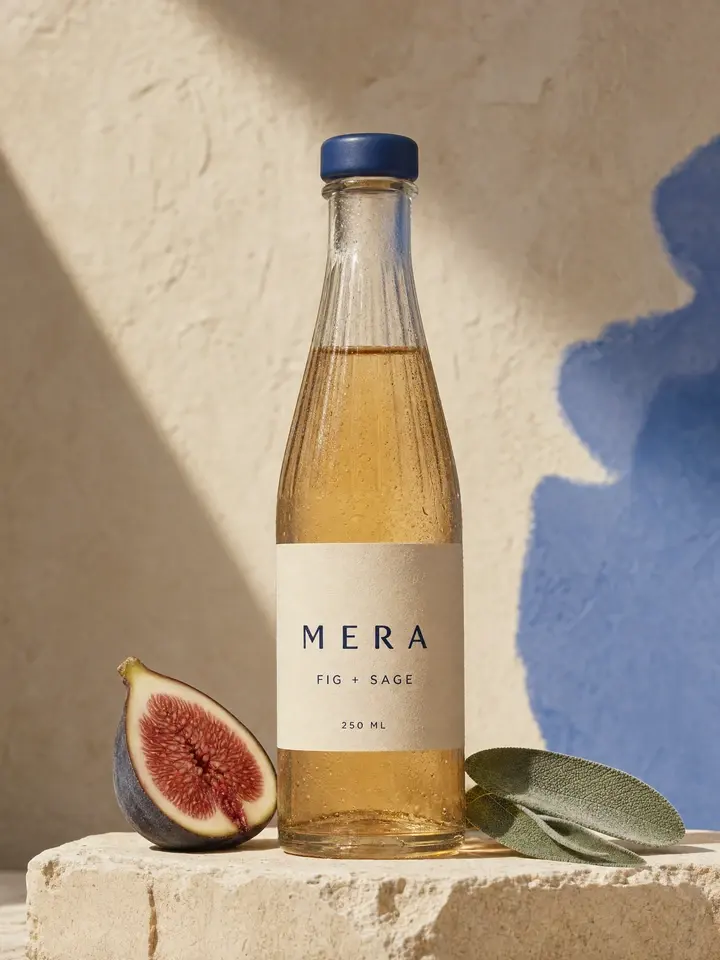
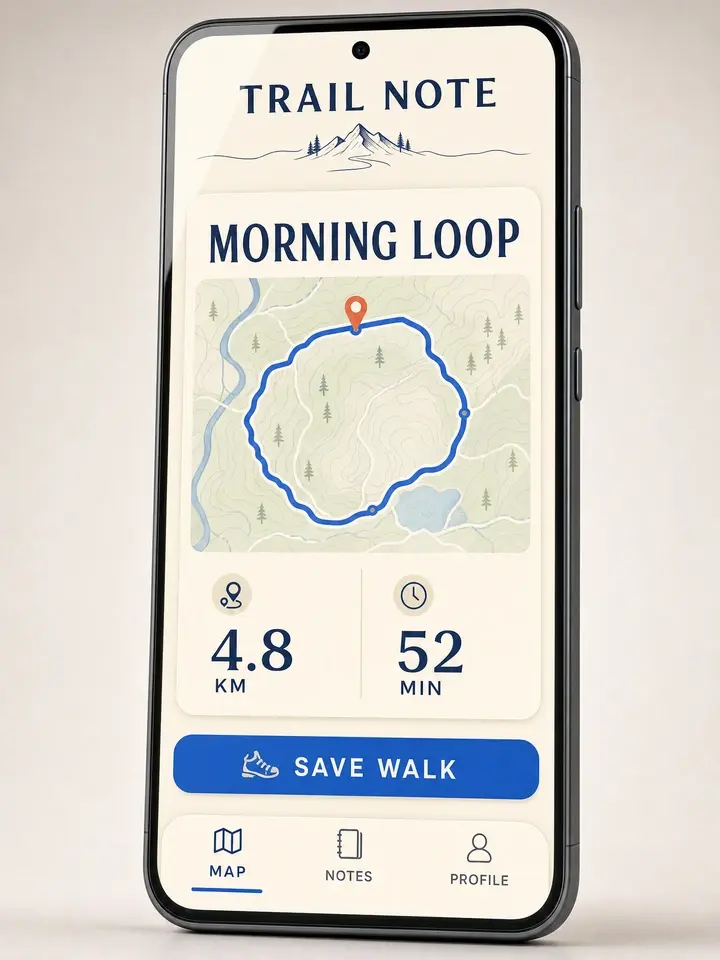
Product visualProduct direction expressed through materials, light, packaging, and a restrained set.UI conceptA concise UI brief translated into one original mobile concept.
Prompt
Create a vertical 3:4 premium product photograph for a fictional sparkling botanical drink named “MERA”. Show one clear fluted glass bottle with pale amber liquid, a matte cobalt cap, and a cream label reading only “MERA”, “FIG + SAGE”, and “250 ML”. Place it on pale limestone beside one halved fig and two sage leaves. Use natural upper-left side light, realistic glass refraction, subtle condensation, and no extra copy.
Trail Note UI prompt
Create a vertical 3:4 presentation image showing one original mobile app UI concept for a fictional walking journal called “TRAIL NOTE”. Show one phone with “MORNING LOOP”, “4.8 KM”, “52 MIN”, “SAVE WALK”, and bottom navigation for “MAP”, “NOTES”, and “PROFILE”. Use a cream canvas, deep navy text, a cobalt loop route, one coral pin, and no additional copy.
PRECISE EDITING
Change what matters. Preserve what does not.
Upload an image, name the exact change, and state which details should stay consistent. Use the editing workflow for color changes, object swaps, scene variations, compositing, product extraction, and other revisions that should keep the original image recognizable.
Describe the change, the invariants, and how the new element should match the existing scene.
Reference edits
Before & after
Detail preservation
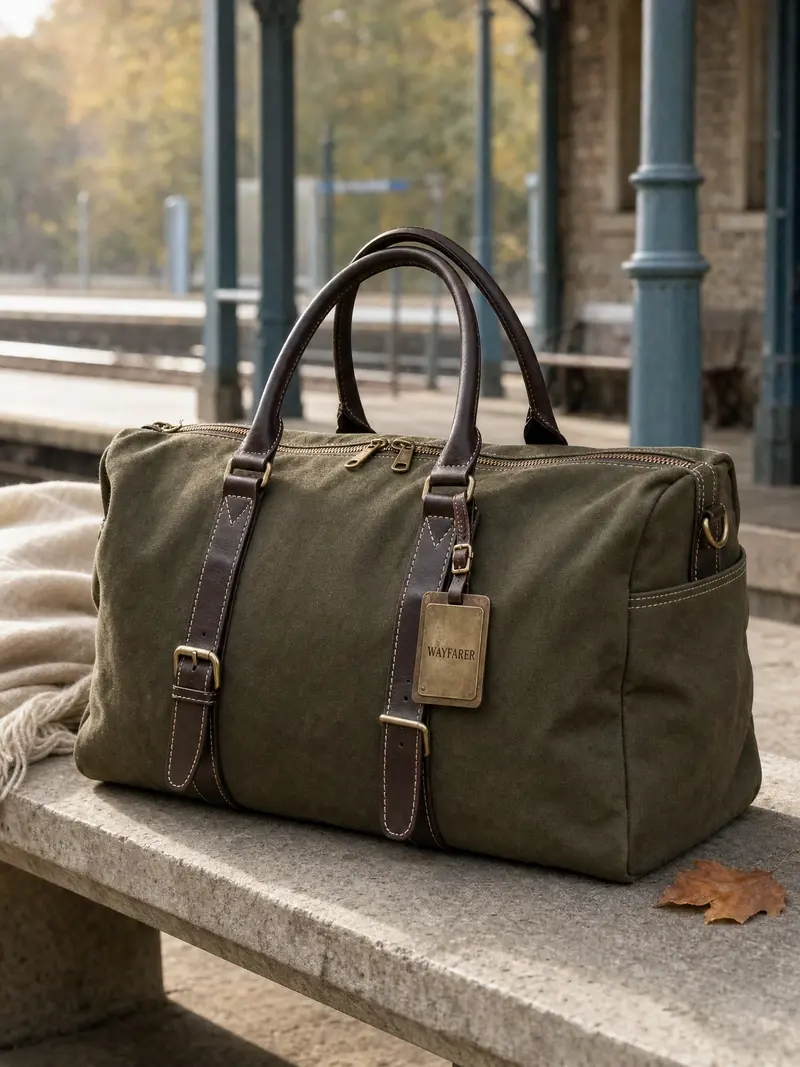
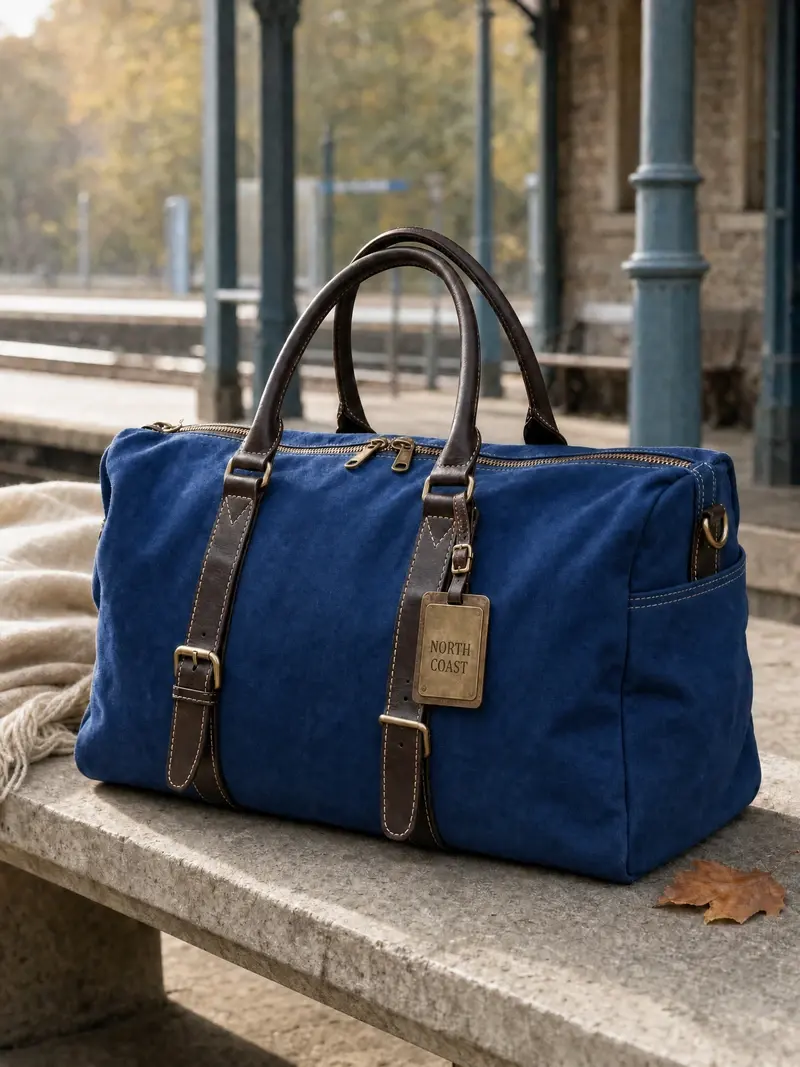
BeforeAfterTwo requested changes, with the source composition and surrounding details held in place.
Prompt
Use image 1 as the source. Change only the travel bag from olive green to cobalt blue and replace the brass tag text with “NORTH COAST”. Preserve the bag geometry, stitching, hardware, scarf, bench, background, camera angle, shadows, and natural daylight.
Write prompts like a usable creative brief
Start with the deliverable and scene, then define the subject, composition, materials, light, and exact copy. For edits, make the change and the invariants equally clear.
For a new image
Use → Scene → Subject → Composition → Materials and light → Exact copy → Constraints
Name the final asset first. Keep visible copy short, quote it exactly, and define the reading order when layout matters.
For an edit
Source roles → Change → Preserve → Placement and match → Output
Give each reference one role. Describe the smallest useful change, then lock the geometry, light, objects, or identity that should remain consistent.
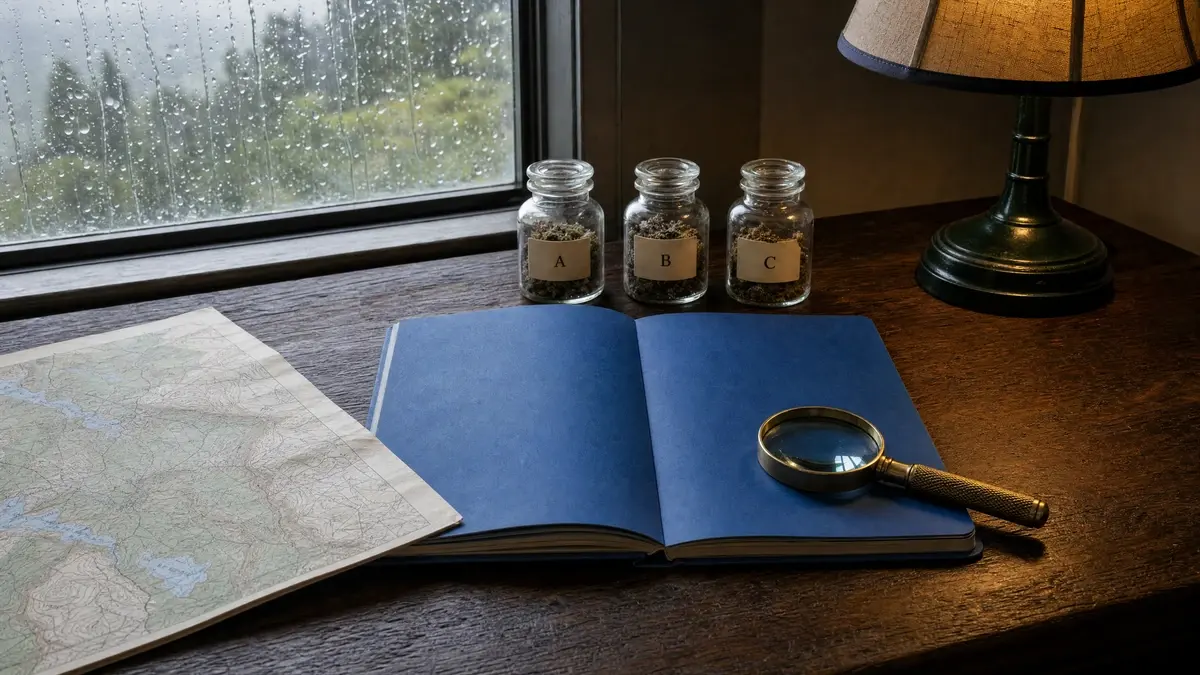
Prompt exampleObject count, position, overlap, materials, and light direction written into one brief.
Generate prompt
Create a 4:3 educational poster titled “HOW A CERAMIC CUP IS MADE”. Show four numbered steps: FORM, DRY, FIRE, GLAZE, with one simple illustration and one short label for each. Use warm white paper, cobalt linework, terracotta accents, a clear reading order, and no additional text.
Edit prompt
Use image 1 as the source. Change only the travel bag from olive green to cobalt blue and replace the brass tag text with “NORTH COAST”. Preserve the bag geometry, stitching, hardware, scarf, bench, background, camera angle, shadows, and natural daylight.
GPT Image 2 settings
Choose an automatic or custom canvas, set the quality and background, then export the result in the format that fits the next step.
Transparent PNGA reusable product asset generated with an alpha-transparent PNG background.
GPT Image 2 or Seedream 5.0 Pro?
Choose GPT Image 2 when generation and reference-guided editing need quality, background, and format controls in one workflow. Choose Seedream 5.0 Pro for the site’s professional Seedream workflow and its own canvas and output profile.
Current
GPT Image 2
Best for text-led layouts, photoreal product and lifestyle concepts, transparent assets, and precise natural-language edits.
GPT Image 2 is an image generation and editing model developed by OpenAI. It supports flexible image sizes, text-led and structured visuals, photorealistic scenes, reference-guided workflows, and natural-language edits.
Can GPT Image 2 generate and edit images?
Yes. Use Text to Image to create a new visual from a prompt, or switch to Image to Image to upload visual references and describe what should change and what should remain consistent.
How many reference images can I use?
Image to Image accepts up to 16 reference images in this workbench. Their order is preserved, and an optional mask can guide edits on the first image.
Which sizes and aspect ratios are available?
Choose Auto, 1:1 HD, 1:1, 3:4, 9:16, 4:3, 16:9, or supported custom width and height values. Text to Image starts at 4:3, while Image to Image starts at Auto.
Which quality, background, and file options are supported?
Choose Auto, Low, Medium, or High quality; Auto, Transparent, or Opaque background; and JPEG, PNG, or WebP output. Transparent backgrounds use PNG or WebP.
How should I write a GPT Image 2 prompt?
Name the intended use, scene, subject, composition, materials, light, exact visible copy, and constraints. For edits, clearly separate what should change from the details that must remain unchanged.
Create with GPT Image 2
Start from a brief or upload images to edit, then choose the canvas, quality, background, and format that fit the final asset.