NANO BANANA 2 · GENERATE & EDIT

Nano Banana 2 AI Image Generator

Create new images or direct visual edits with Nano Banana 2, Google’s Gemini 3.1 Flash Image model. Move from quick 0.5K concepts to 4K output, work across 15 aspect-ratio options, and combine visual references in one workflow.

  • 0.5K–4K output
  • 15 aspect-ratio options
  • Up to 14 references
  • JPEG · PNG · WebP

Create with Nano Banana 2

Start from a prompt or visual references, then choose the output controls that fit the image you need.

Choose Model
Workflow
0 / 2,000
Generate imageLive quote

Image Results

Private and saved
History

See what Nano Banana 2 can create

These first-party results were created for this page with the same Nano Banana 2 generation and editing endpoints available in the workbench.

FIRST-PARTY RESULT

Start with the deliverable, not a list of adjectives

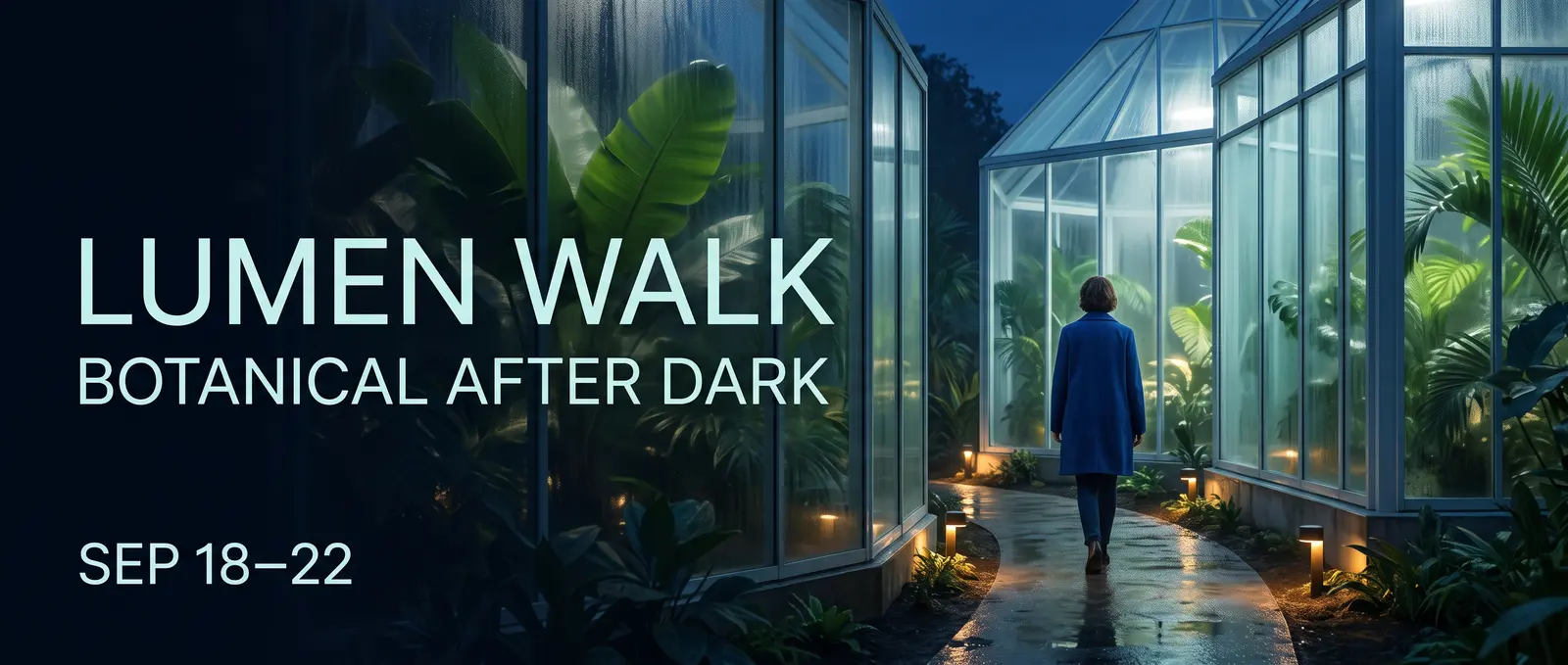
This campaign visual begins with a clear format, a fictional event, three exact lines of copy, and a defined reading order. Camera, light, palette, and negative space then shape the creative direction around that job.
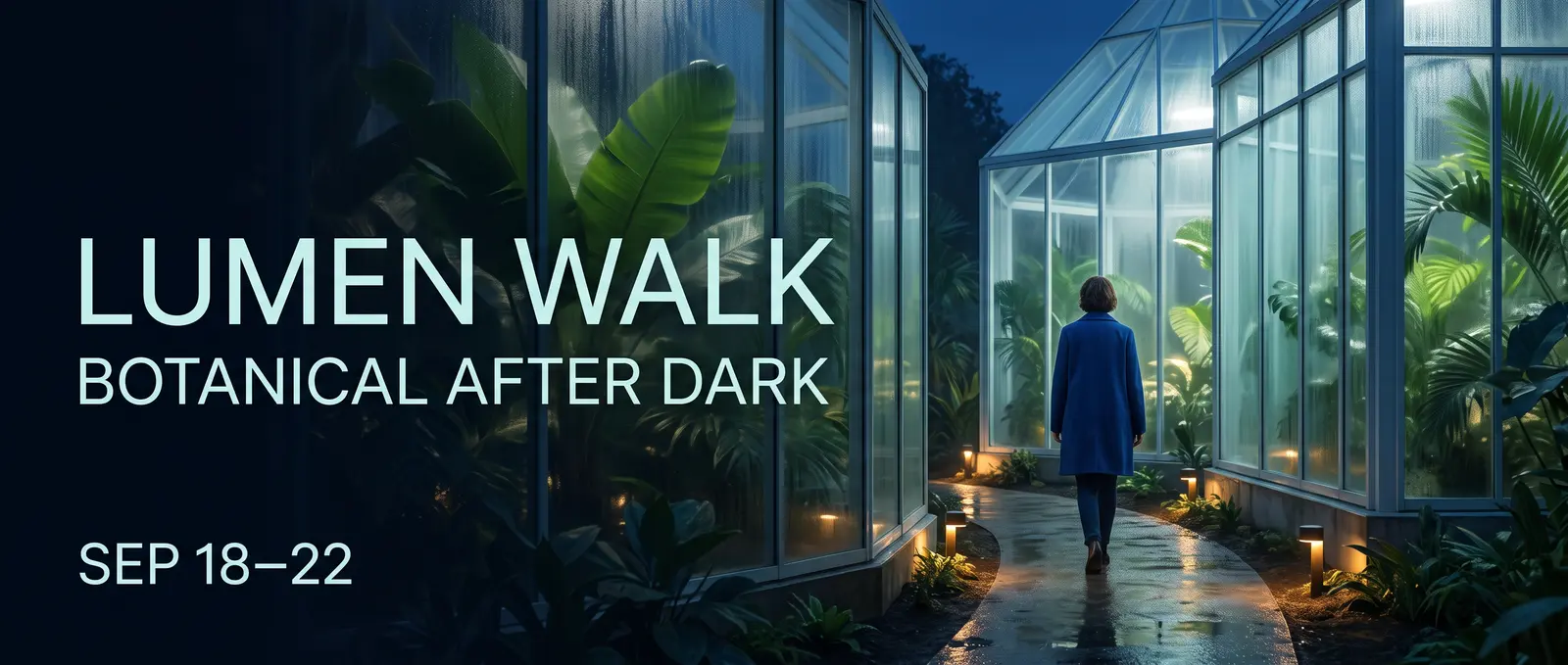
Lumen Walk botanical night campaign inside a glass conservatory
A 21:9 fictional campaign visual created from a structured creative brief.AI-generated · Nano Banana 2 · Site-produced
Prompt

Create an ultrawide 21:9 editorial campaign banner for a fictional nighttime botanical event named LUMEN WALK. Deliverable and hierarchy: - A premium web campaign visual with one clear title, one supporting line, and one date line. - Render exactly these three lines and no other words: LUMEN WALK BOTANICAL AFTER DARK SEP 18–22 - The title must be the largest line, the supporting line second, and the date smallest. Keep every letter legible and correctly spelled. Scene: - A contemporary glass conservatory at blue hour, seen from a slightly low eye-level camera. - Luminous tropical leaves, soft condensation on glass, a narrow reflective path, and small pools of warm amber light. - One adult visitor in a simple deep-cobalt coat walking into the conservatory, viewed at a respectful distance, not a portrait. Composition and design: - Place the text as an integrated editorial layout in the left third. - Keep the adult visitor and brightest conservatory structure in the right two thirds. - Maintain generous negative space around all text and a clear left-to-right reading path. - Palette: midnight blue, botanical green, soft cyan glass, restrained amber highlights. - Refined contemporary sans-serif typography, no logos, no sponsor marks, no QR code, no extra text. Rendering: - Photorealistic environment with crisp foliage, realistic glass reflections, natural atmospheric depth, and controlled cinematic light. - Do not create a collage, frame, device mockup, website UI, border, watermark, or caption outside the designed campaign image.
01 · INFORMATION-RICH VISUALS

Turn information into a visual hierarchy

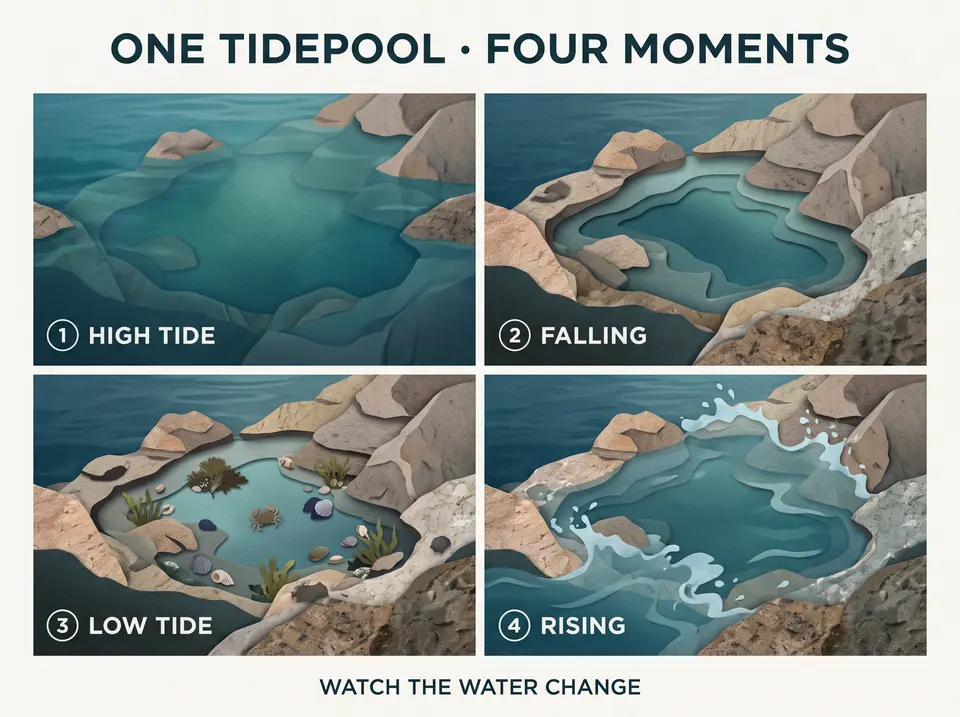
Tell Nano Banana 2 what the viewer should notice first, how the information is grouped, and which short phrases must appear exactly. A defined panel structure and limited copy give an infographic, explainer, or campaign card a stronger starting point than ‘make it informative.’

  • Reading order
  • Exact short copy
  • Panel structure
Four-panel tidepool visual showing high, falling, low, and rising tide moments
A four-panel visual organized with exact labels and a defined reading order.
Prompt

Create a polished 4:3 editorial explainer titled ONE TIDEPOOL · FOUR MOMENTS. The subject is the changing appearance of one rocky tidepool across a tidal cycle. This is a visual sequence, not a scientific textbook page. Use exactly four equal panels in a left-to-right reading order. Show the same tidepool, rock shapes, camera angle, and restrained natural palette in every panel while the visible water level changes. Render exactly this copy and no other text: ONE TIDEPOOL · FOUR MOMENTS 1 HIGH TIDE 2 FALLING 3 LOW TIDE 4 RISING WATCH THE WATER CHANGE Panel content: 1. HIGH TIDE — the pool and nearby rocks are mostly covered by clear blue-green water. 2. FALLING — the water recedes and more rock texture appears. 3. LOW TIDE — the contained pool is visible with small seaweed, shells, and one tiny shore crab. 4. RISING — a gentle incoming flow begins to cover the outer rocks again. Design: - Large title at the top, four compact panel labels, one short footer. - Contemporary natural-history editorial style using simple diagrams blended with tactile cut-paper and realistic textures. - Clear spacing, consistent icons, no arrows crossing text, no paragraphs, no legend, no logo, no watermark, and no extra annotations.

02 · ONE DIRECTION · MORE CANVASES

Reframe one direction for almost any canvas

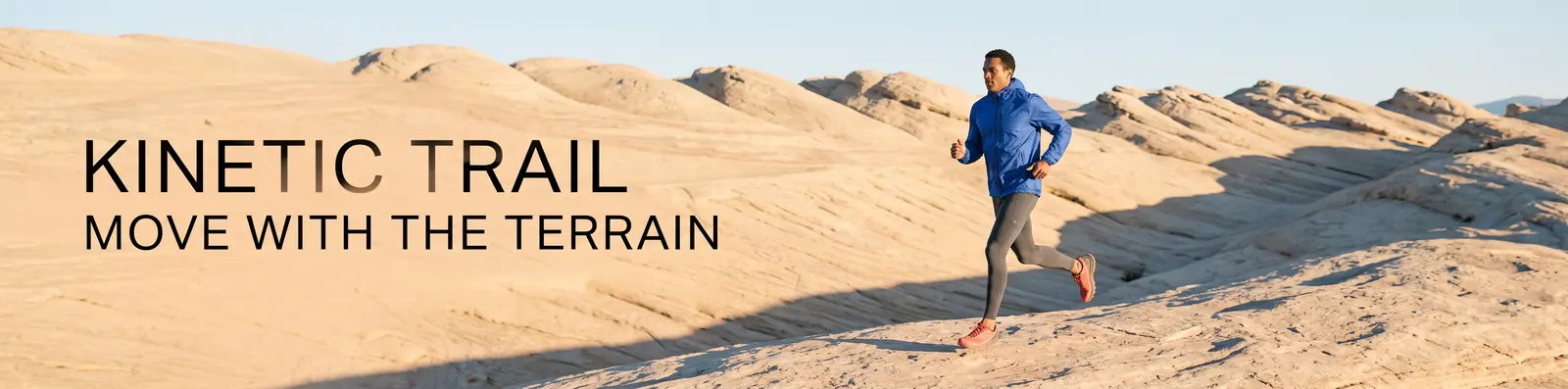
Nano Banana 2 includes standard landscape and portrait formats plus 4:1, 1:4, 8:1, and 1:8. Use the editing workflow to recompose a selected direction while keeping the subject, wardrobe, palette, and campaign language connected.

  • Standard ratios
  • Extreme ratios
  • Reference recompose
Ultrawide Kinetic Trail campaign with an adult runner crossing sandstone terrain
4:1 source
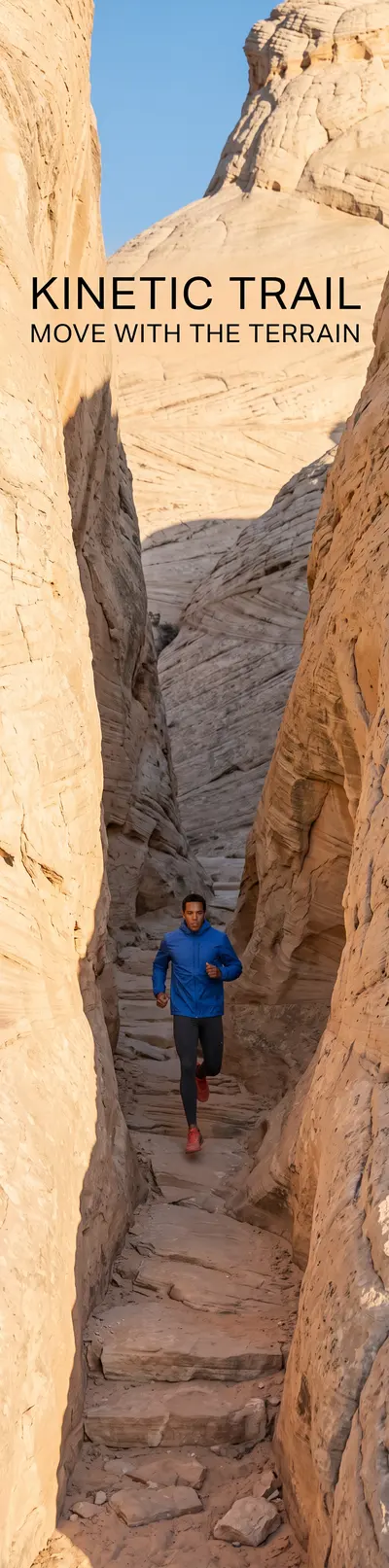
Vertical Kinetic Trail campaign recomposed from the ultrawide source
1:4 recompose

The selected 4:1 direction was recomposed through the editing endpoint for a 1:4 canvas.

Prompt

Use Image 1 as the only visual source. Recompose the KINETIC TRAIL campaign as a new 1:4 vertical image; do not crop, stretch, rotate, or place the original image inside a frame. Preserve: - the same adult runner’s overall appearance; - the cobalt windbreaker, charcoal tights, and coral trail shoes; - the warm pale-sandstone environment; - the cool-cobalt and warm-sand palette; - the low sunrise direction and editorial photographic finish; - exactly the same campaign copy and spelling: KINETIC TRAIL MOVE WITH THE TERRAIN Recompose: - Place the runner in the lower-middle area moving upward through a tall sandstone passage. - Use the vertical rock walls and a narrow strip of sky to create depth through the full 1:4 canvas. - Place KINETIC TRAIL in the upper open area and MOVE WITH THE TERRAIN below it, with safe margins and strong readability. - Extend the environment naturally above and below the source direction. No additional people, clothing changes, logos, extra text, border, collage, duplicated limbs, or watermark.

03 · MULTI-REFERENCE EDITING

Build a scene from multiple references

Give every source a clear job: use one image as the base, take an object from another, and carry a material or pattern from a third. Then name the placement, scale, lighting match, and details that must remain unchanged.

  • Base scene
  • Object reference
  • Material reference
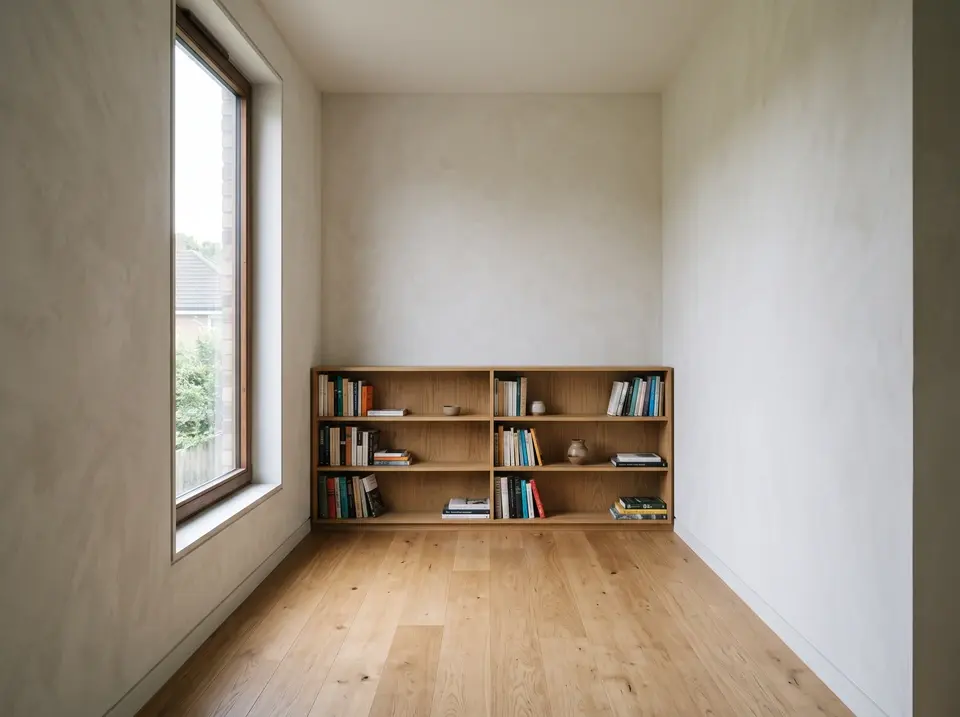
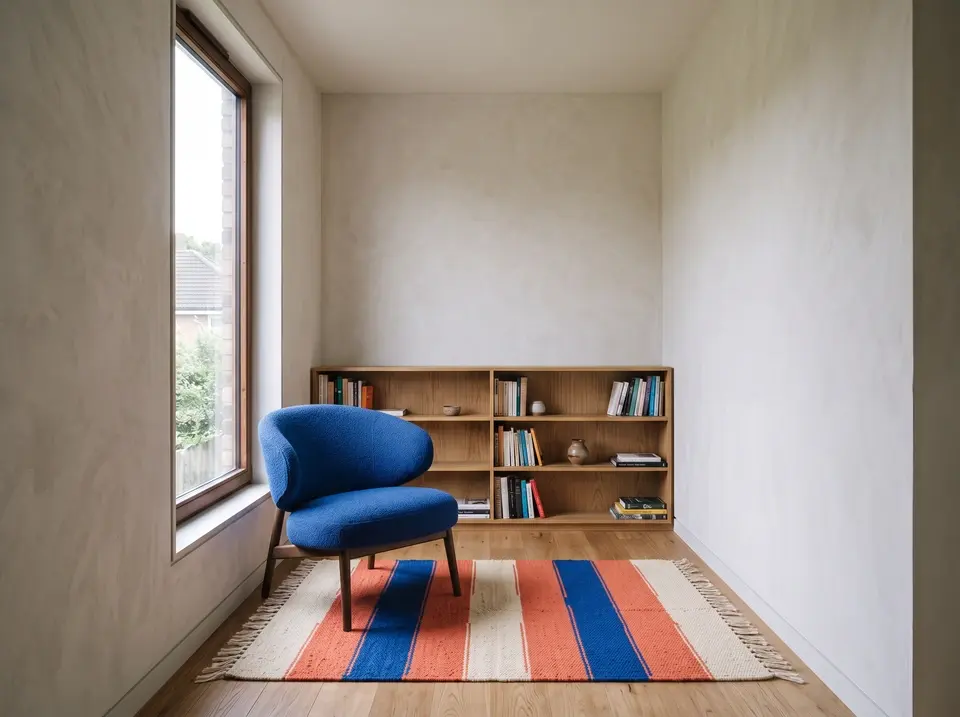
Empty reading room with oak floor, built-in bookcase, and morning window light
Image 1 · Base room
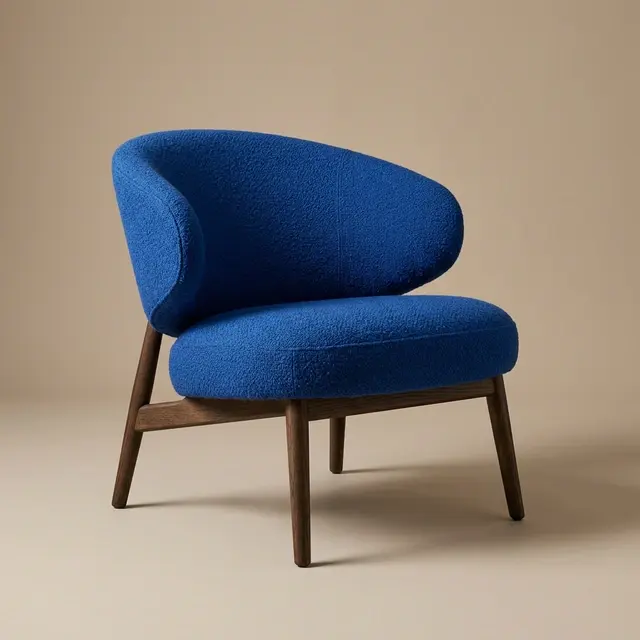
Cobalt-blue sculptural lounge chair on a neutral studio background
Image 2 · Chair
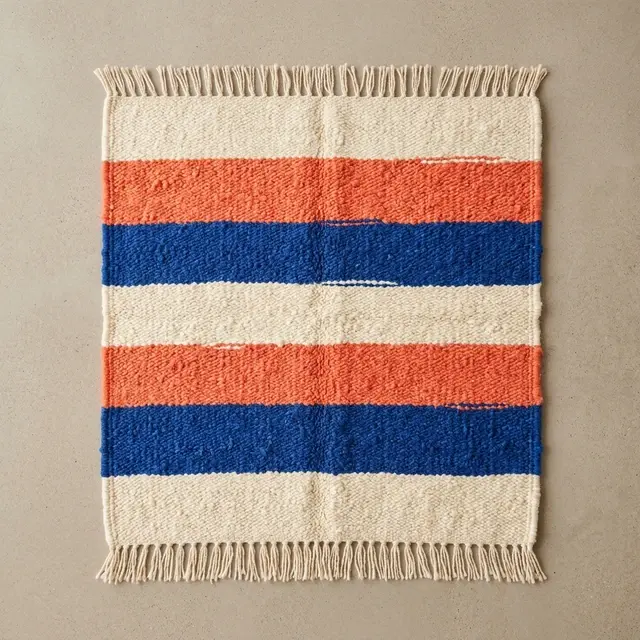
Handwoven cream, coral, and cobalt striped rug viewed from above
Image 3 · Rug
Reading room composed with a cobalt chair and striped woven rug from two references
Composed resultImage 1 sets the room; Images 2 and 3 supply the chair and rug.
Prompt

Use Image 1 as the base room. Use Image 2 only as the chair reference. Use Image 3 only as the rug reference. Build one photorealistic interior result: - Place the cobalt lounge chair from Image 2 in the empty seating area near the left window, angled slightly toward the bookcase. - Place the cream, coral, and cobalt rug from Image 3 beneath the chair, large enough to anchor the seating area without covering the entire oak floor. Preserve from Image 1: - the room geometry and wall positions; - the camera height, lens perspective, and framing; - the tall left window and its view; - the built-in bookcase and books; - the pale wall finish and warm oak floor; - the early-morning light direction. Match the chair and rug to the room with correct scale, perspective, contact shadows, soft window highlights, fabric texture, and floor occlusion. Do not redesign the chair or rug, change their colors, add another object, move the architecture, add people, add text, or create a collage. Output one continuous 4:3 room photograph.

PROMPT GUIDE

Direct the image, then define every source

A useful prompt reads like a compact creative brief. Name the job, organize the scene, and make exact copy or preservation rules explicit.

  1. Generate

    Deliverable → Subject → Action → Setting → Composition → Camera and light → Exact copy → Output

  2. Edit

    Image roles → Relationship → Change or build → Preserve → Placement and match → Output

  • Name the deliverable.
  • Quote short copy exactly.
  • Assign each reference a role.
  • Separate changes from preserved details.
  • Describe placement, scale, perspective, and light.
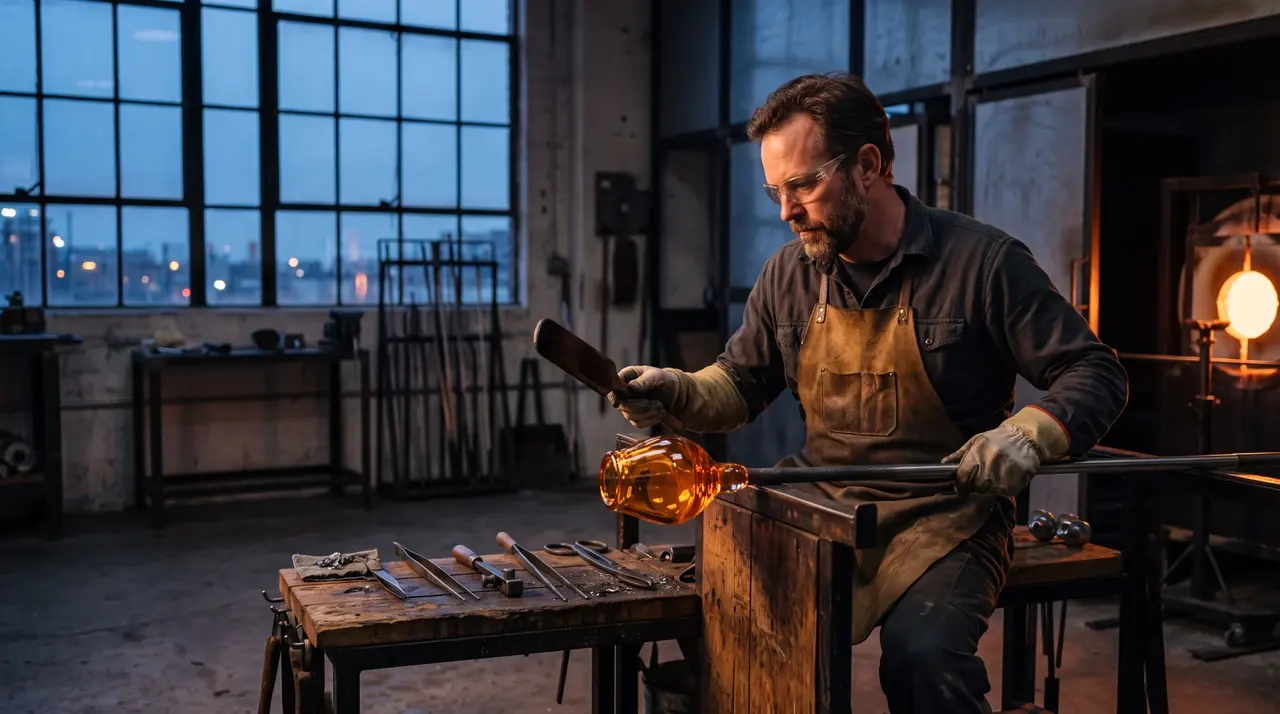
Adult glass artist shaping amber glass in a dawn-lit studio
Prompt exampleA complete prompt defines the job, subject, setting, camera, light, material, and exclusions.
Generation prompt

Create a 16:9 editorial photograph of an adult glass artist shaping amber glass in a quiet studio before sunrise. Frame the artist from waist height, keep the furnace glow on the right, use soft blue window light from the left, preserve realistic tools and heat reflections, and leave a calm area of negative space above the workbench. Photorealistic, 4K, no visible brand marks.

Reference edit prompt

Use Image 1 as the base room. Add the cobalt chair from Image 2 beside the left window and place the striped rug from Image 3 beneath the seating area. Preserve the room geometry, camera position, wood finish, window view, and morning light. Match contact shadows, scale, perspective, and fabric texture. Output a 4:3 photorealistic interior.

Nano Banana 2 settings

Choose the output controls that match the job, then keep prompt, reference, and context decisions inside the same task.

SettingAvailable options
WorkflowText to Image, Image to Image
Resolution0.5K, 1K, 2K, 4K
Aspect ratioAuto, 21:9, 16:9, 3:2, 4:3, 5:4, 1:1, 4:5, 3:4, 2:3, 9:16, 4:1, 1:4, 8:1, 1:8
Output formatJPEG, PNG, WebP
Reference imagesUp to 14 in Image to Image
Outputs1, 2, 3, or 4
SeedOptional integer
Web searchOff or On
ThinkingOff, Minimal, High
Context filesVideo, audio, PDF, or a supported YouTube link in Image to Image
Default1K, Auto, PNG, 1 output, Web search Off, Thinking OffDefault

Resolution, aspect ratio, format, and Advanced controls share the same task and runtime quote. Model documentation.

Nano Banana 2 or GPT Image 2?

Choose Nano Banana 2 when broad aspect-ratio coverage, 0.5K–4K output, multi-reference composition, and optional web-grounded workflows matter. Choose GPT Image 2 when quality controls and a custom-dimension workflow better fit the task. Both models support generation and natural-language image editing in the shared workbench.

DecisionNano Banana 2GPT Image 2
Best fitBroad ratios and multi-reference compositionQuality-led control and custom dimensions
Output sizing0.5K, 1K, 2K, 4KAuto or custom width and height
Ratio controlAuto plus 14 fixed ratiosCommon model-specific ratios
Quality controlNoneAuto, Low, Medium, High
FormatJPEG, PNG, WebPJPEG, PNG, WebP
Explore GPT Image 2

Frequently asked questions

Quick answers about Nano Banana 2 generation, editing, output settings, references, and Advanced controls.

What is Nano Banana 2?

Nano Banana 2 is Google’s Gemini 3.1 Flash Image model for generating images and directing edits with natural-language prompts. On this page, it is available through the shared image workbench.

Is Nano Banana 2 the same as Nano Banana Pro?

No. Nano Banana 2 refers to Gemini 3.1 Flash Image, while Nano Banana Pro refers to Gemini 3 Pro Image. They are separate models with different workflows and positioning.

Which resolutions and aspect ratios can I use?

Nano Banana 2 supports 0.5K, 1K, 2K, and 4K output. Choose Auto or a fixed ratio from 21:9 through 1:8, including landscape, square, portrait, and extreme formats.

How many reference images can I add?

The Image to Image workflow accepts up to 14 reference images. Assign each image a clear role in the prompt, such as the base scene, subject, product, texture, or material direction.

Which output formats are available?

You can export Nano Banana 2 results as JPEG, PNG, or WebP. PNG is the default format in the workbench.

Can Nano Banana 2 use web search or thinking?

Yes. Turn on web search when the brief needs current context, or choose Minimal or High thinking for more visual planning. The workbench shows the available controls and runtime quote before you submit.

Create with Nano Banana 2

Start with a new prompt or bring visual references into the editing workflow.