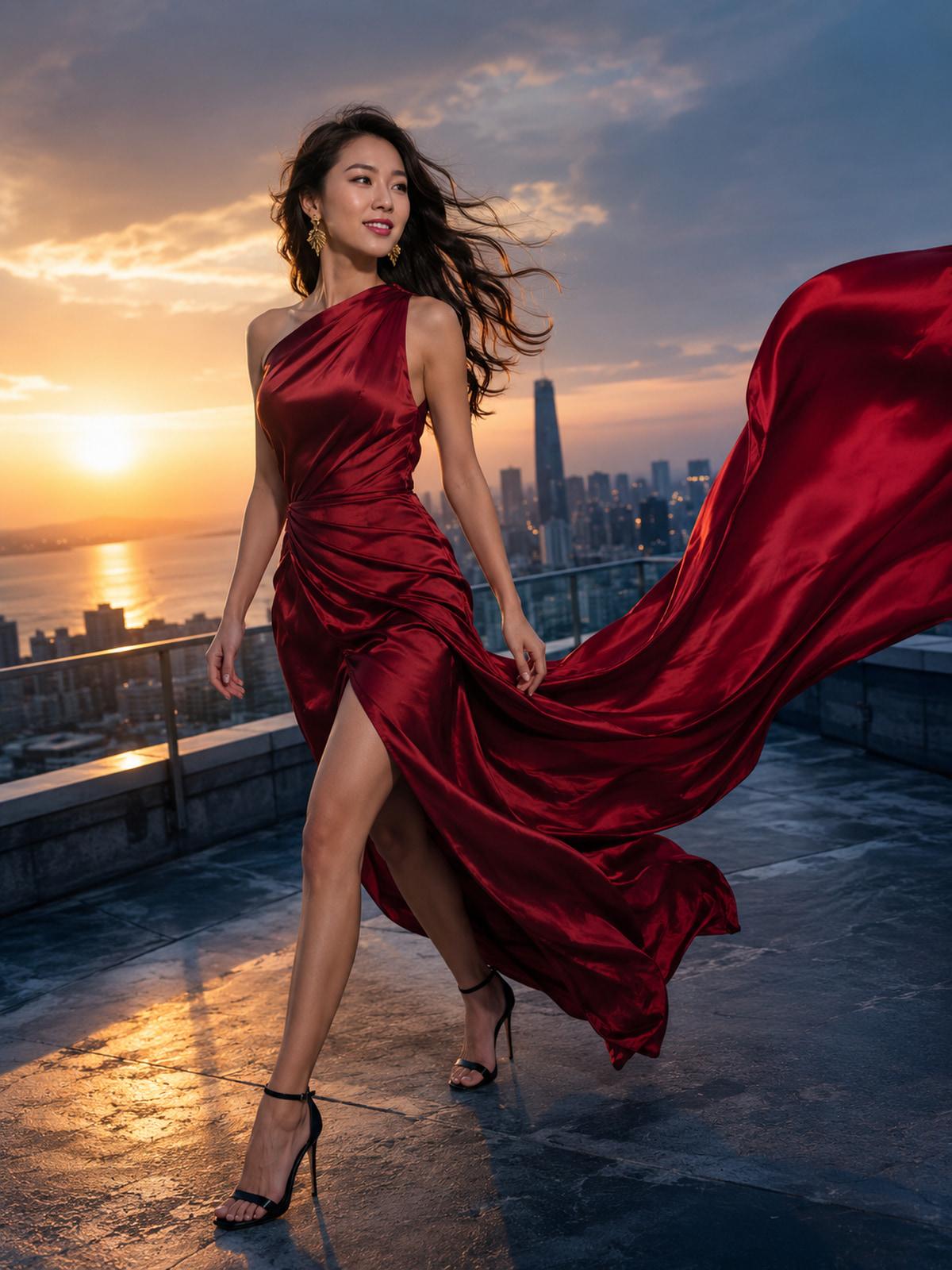
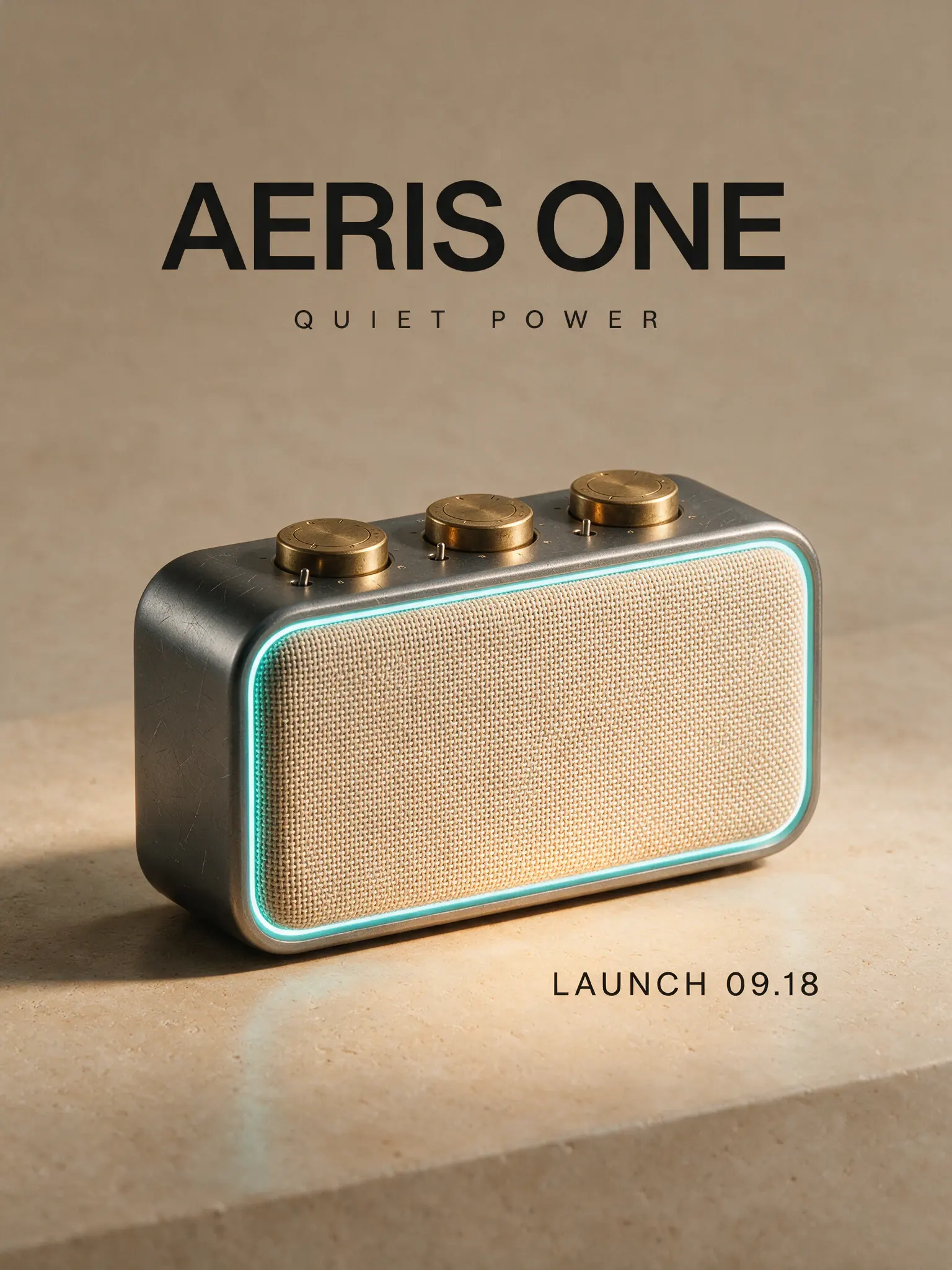
Create structured infographics, multilingual campaign visuals, realistic product photography, portraits, and controlled image edits with ByteDance Seed’s professional image model. Start from a prompt or reference images, choose the canvas, and export as JPEG or PNG.
Text to Image
Image to Image
Auto 1K & Auto 2K
Custom dimensions
Choose Model
Workflow
Describe the deliverable, composition, exact copy, materials, camera, and light.
Seedream 5.0 Pro is a multimodal image generation model from ByteDance Seed, released on July 8, 2026 for professional visual production. It is designed to translate detailed instructions into information-rich layouts, multilingual creative, and imagery with convincing light, materials, and skin texture.
On this page, use Text to Image to create from a brief or Image to Image to direct changes with reference images. Both workflows share the same canvas and export controls, so you can move from an idea to a usable visual direction in one workbench.
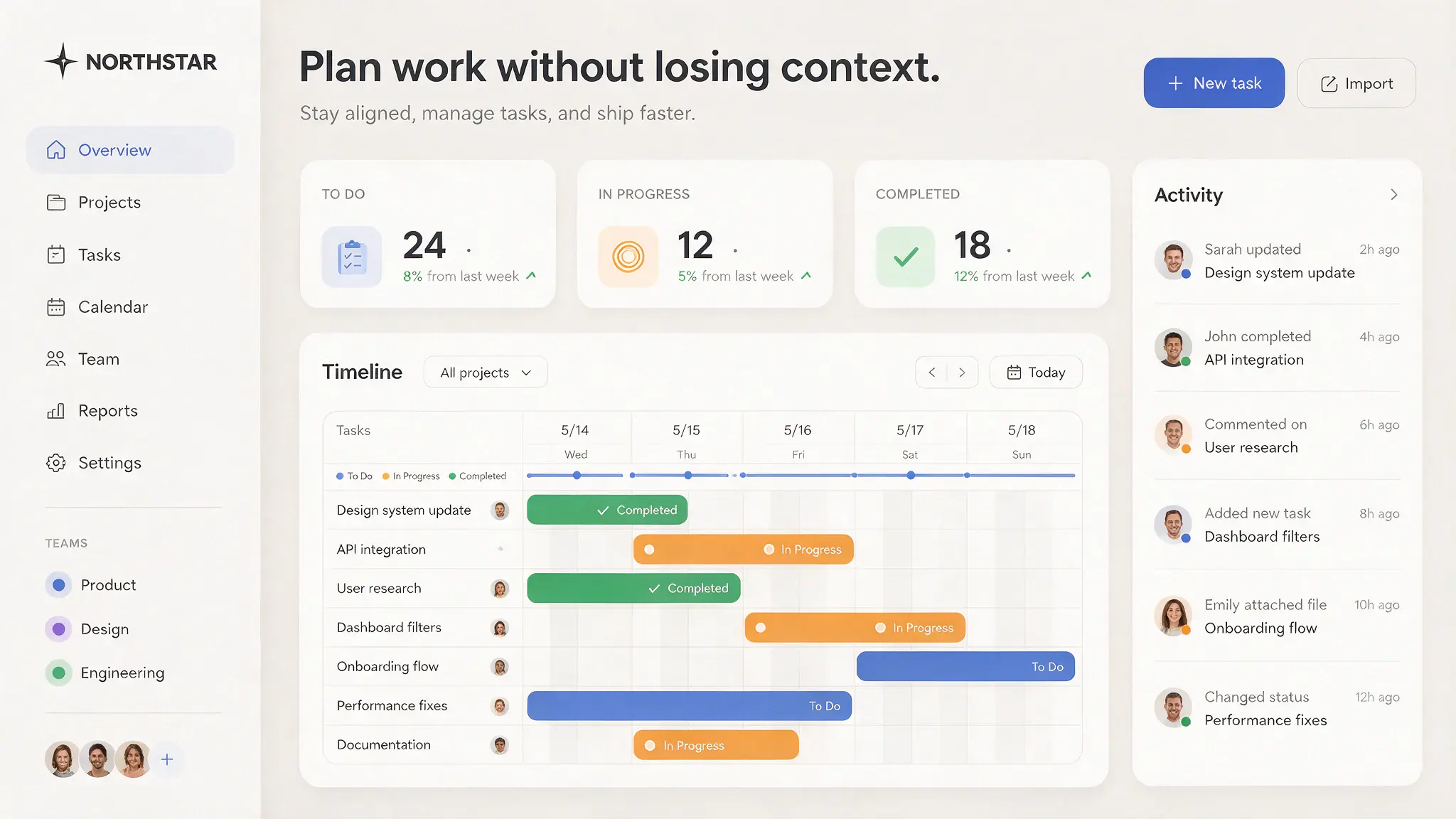
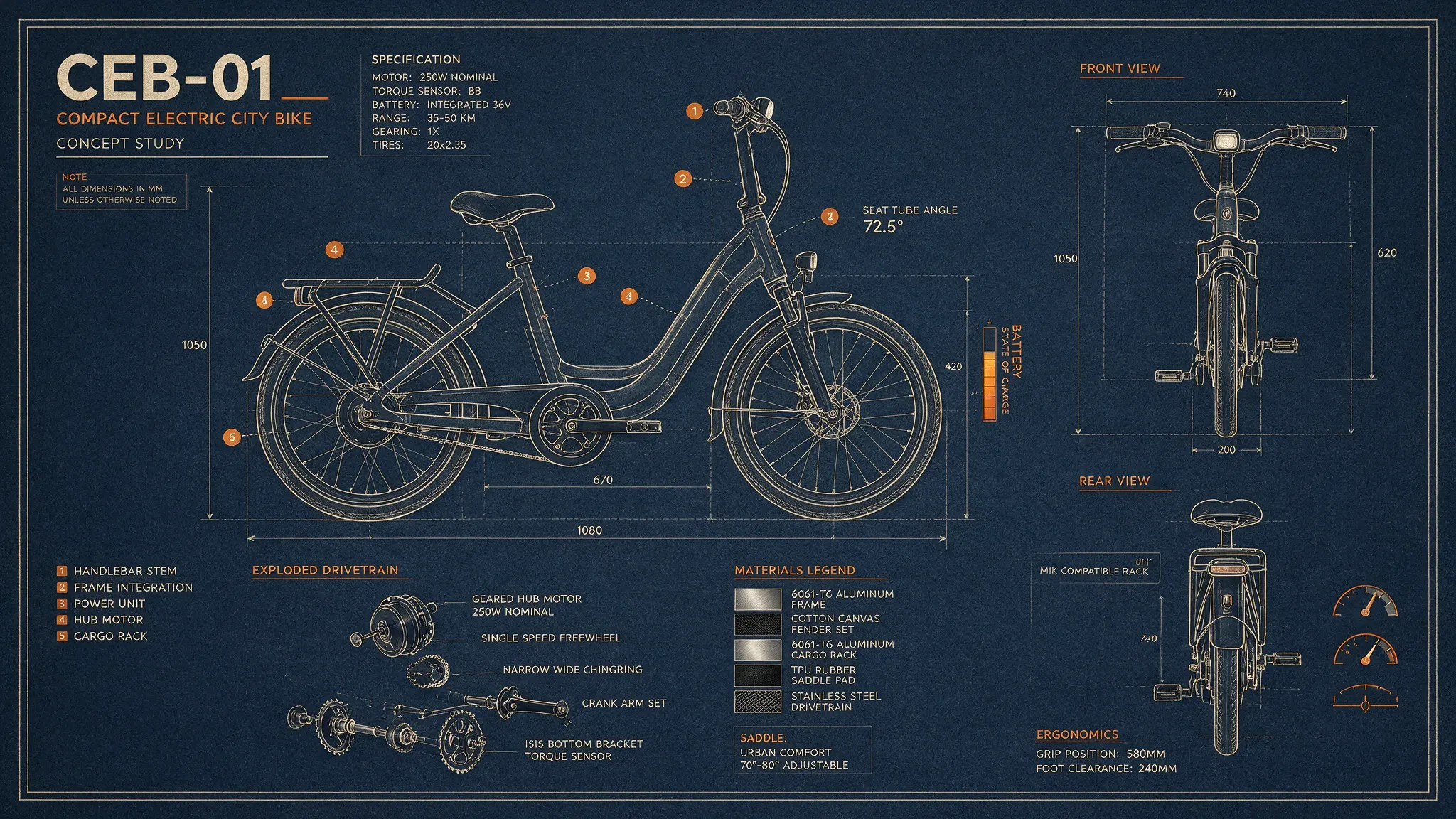
Structured interface concept · 16:9A fictional workflow dashboard created from a layout-first prompt.
Each example on this page was generated through the same Seedream 5.0 Pro routes used by the workbench. Open the prompt, apply it, and adapt the canvas to your own project.
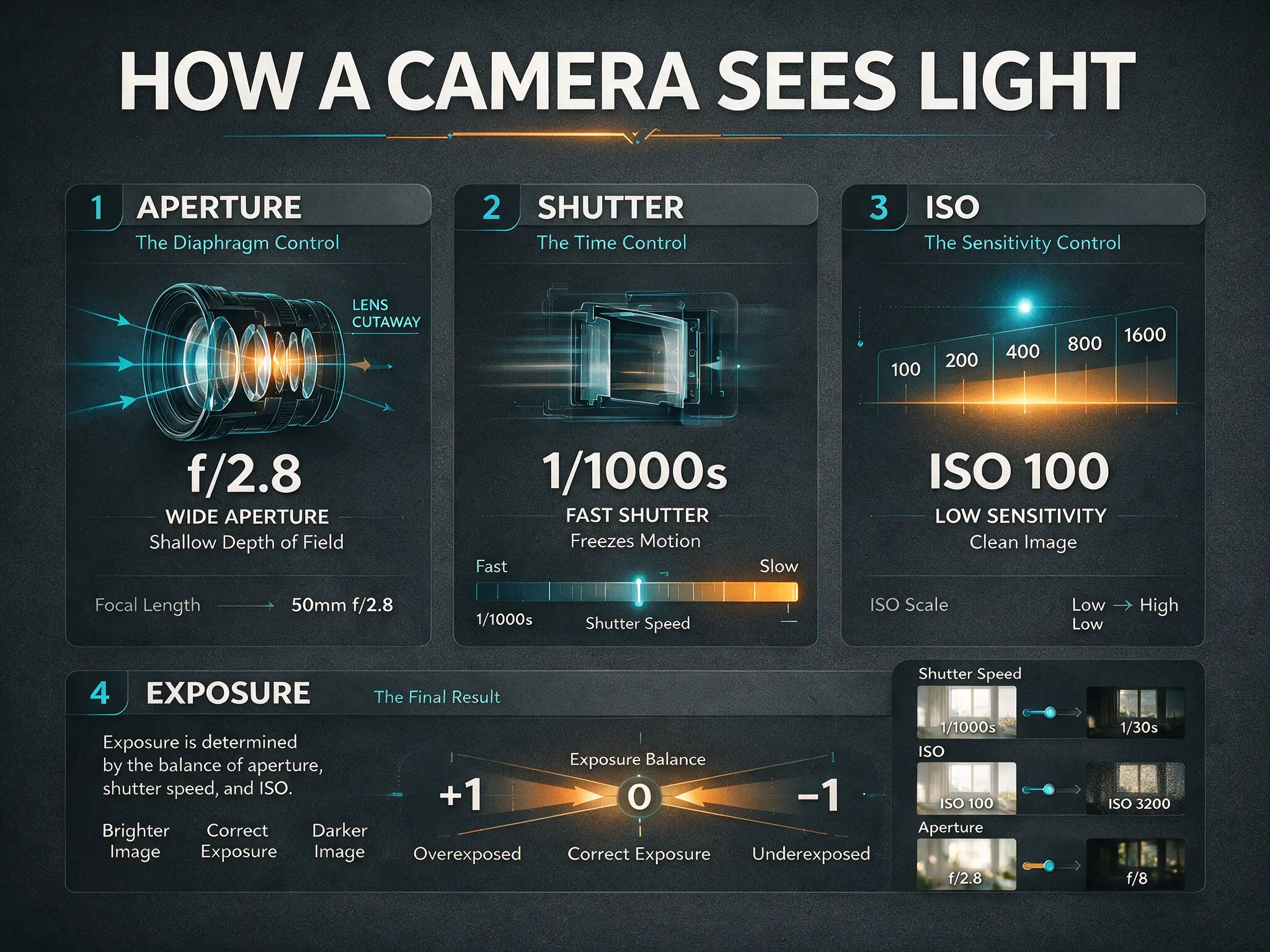
FEATURED · HIGH-DENSITY INFOGRAPHIC
Turn a dense brief into one clear visual system
Define the title, sections, labels, diagrams, color roles, and reading order in one brief. Seedream 5.0 Pro can organize those constraints into a coherent frame for explainers, educational graphics, technical overviews, and editorial layouts.
4:3
PNG
Text to Image
High-density infographic · 4:3 · PNG
Prompt
Create a 4:3 editorial infographic titled “HOW A CAMERA SEES LIGHT.” Use a clean dark graphite grid with four numbered sections: APERTURE, SHUTTER, ISO, and EXPOSURE. Show one simple lens cutaway, one exposure scale, and three small comparison panels. Use cyan technical lines, warm amber highlights, short readable labels, generous spacing, and no brand logos. Treat all numbers as illustrative demo data.
Where Seedream 5.0 Pro stands out
Use detailed relationships, exact content, and a defined output frame to direct complex design and photographic work.
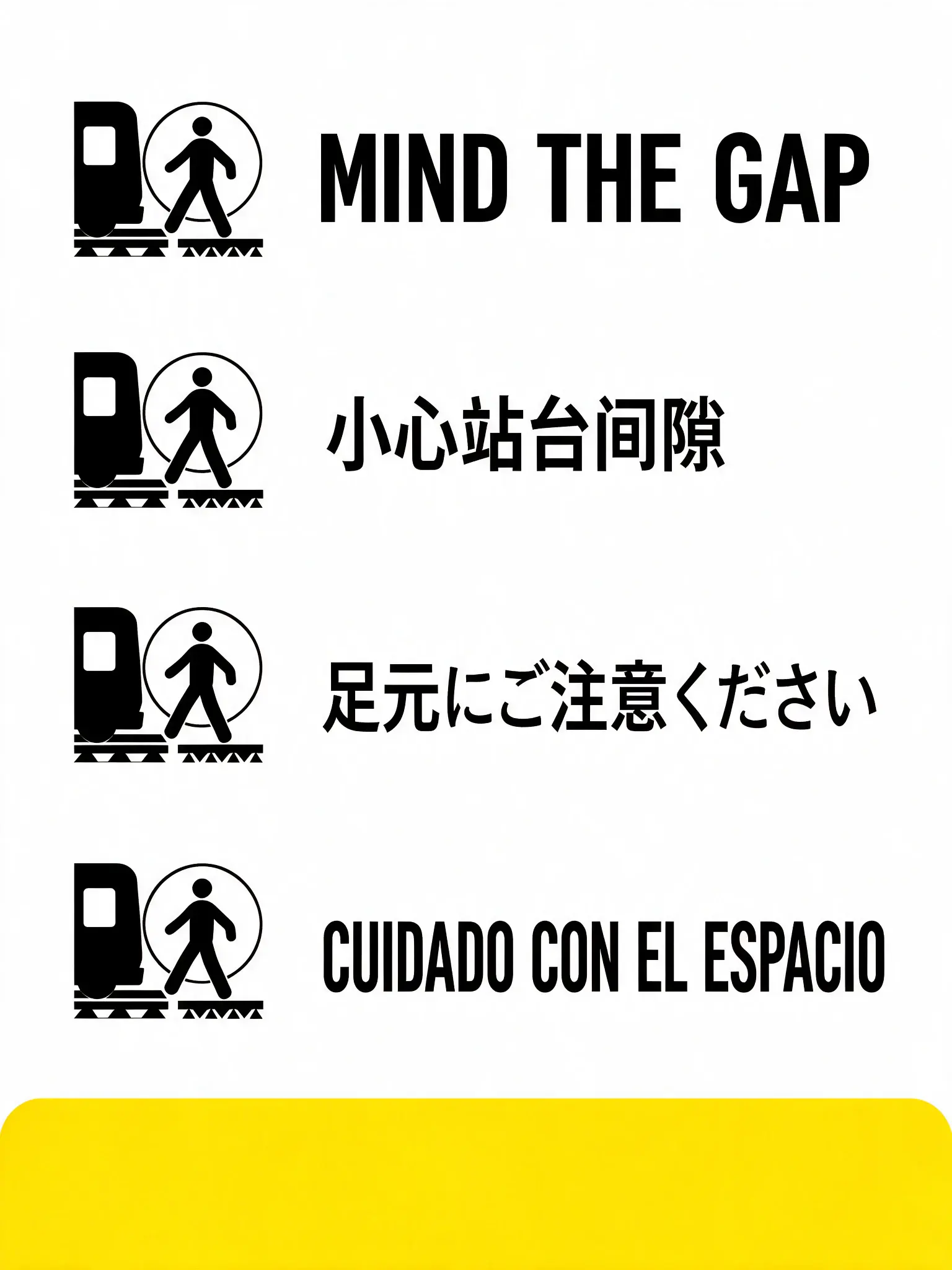
01 · MULTILINGUAL DESIGN
Build multilingual campaigns with a deliberate reading order
Create posters, signs, menus, launch graphics, and localized concepts across more than ten widely used languages. Put required copy in quotation marks, separate each language block, and define hierarchy, alignment, and reading direction so the text belongs to the design rather than sitting on top of it.
Design a vertical 3:4 public-transit safety poster with a white background, black pictograms, and a single yellow warning band. Display the same short message in four clearly separated rows: “MIND THE GAP”, “小心站台间隙”, “足元にご注意ください”, and “CUIDADO CON EL ESPACIO”. Keep the hierarchy simple, the text large, and the icons consistent. No real transit logo.
02 · PHOTOGRAPHIC DETAIL
Describe realism through light, texture, and material behavior
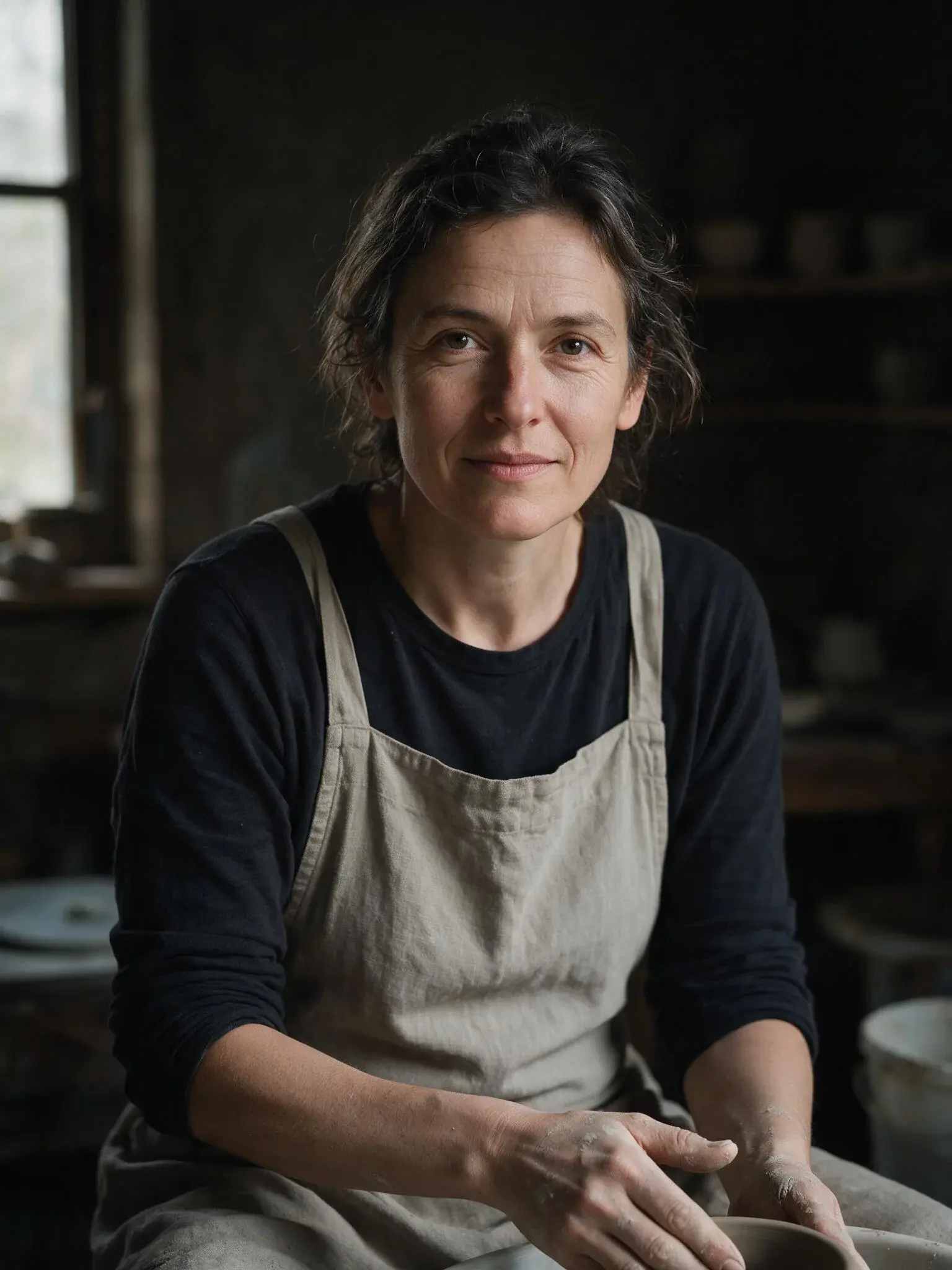
Direct portraits, product visuals, interiors, food, and architecture with concrete physical cues. Name the surface, the light source, the direction of reflection, the lens or viewpoint, and the relationship between foreground and background. Specific visual behavior gives the model more useful guidance than generic quality words.
Portraits
Products
Materials
Portrait direction · 3:4Material study · 1:1
Prompt
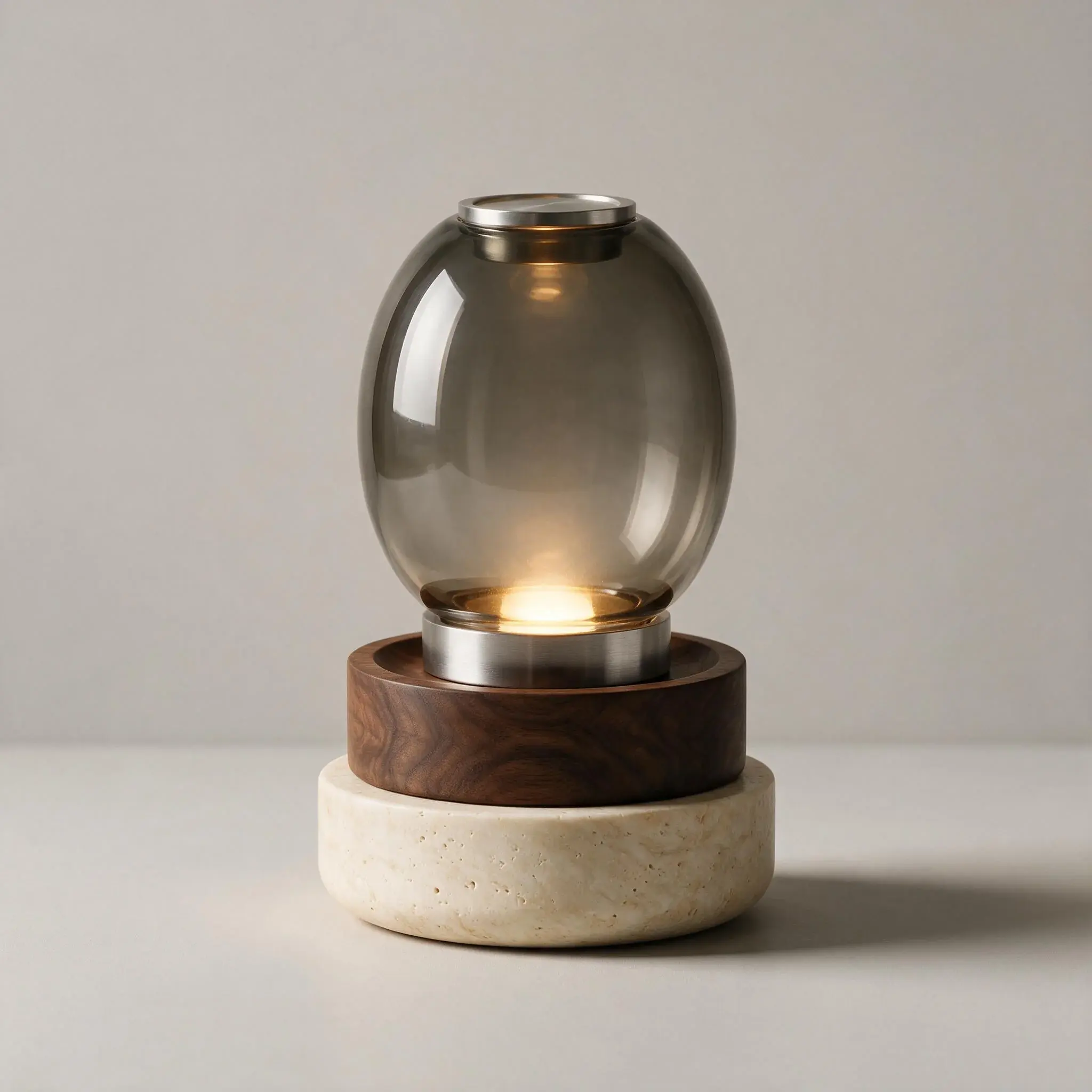
Create a square studio material study featuring one fictional tabletop lamp assembled from smoked glass, brushed steel, pale travertine, and dark walnut. Use one warm internal light source and one cool edge light. Show accurate reflection, refraction, translucency, surface grain, and contact shadows on a neutral background. No logo and no text.
03 · VISUAL PLANNING
Plan complex visuals before production
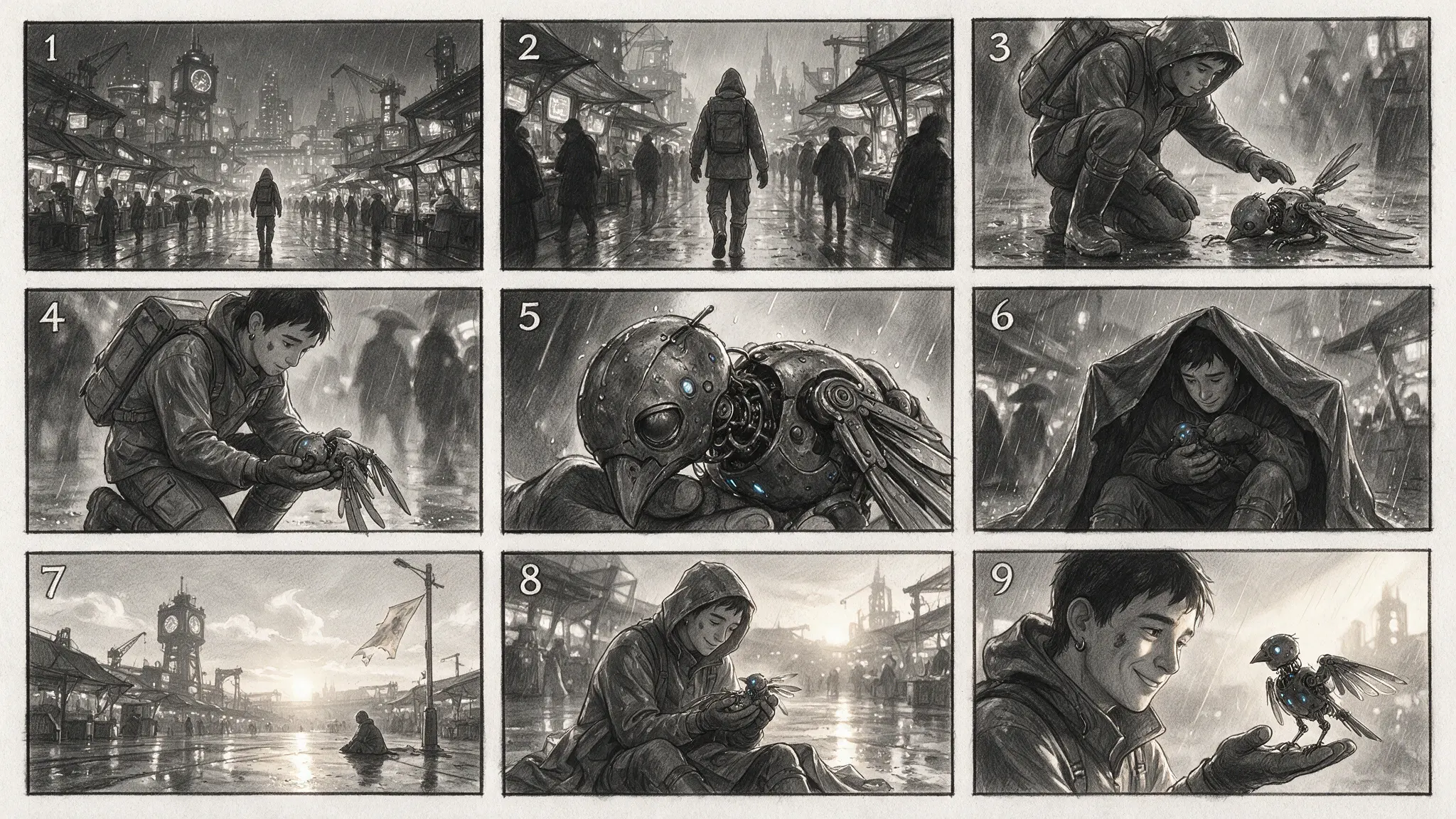
Break a concept into panels, views, callouts, and numbered steps before asking for a finished frame. This structure works well for storyboards, technical studies, interface concepts, educational sequences, and early creative direction where relationships matter as much as style.
Generate a 3-by-3 cinematic storyboard with nine separate numbered panels. Story: a courier crosses a rain-soaked future market, notices a lost mechanical bird, shelters it, and watches it restart at dawn. Use graphite storyboard drawing, clear panel borders, consistent clothing, readable panel numbers 1–9, and changing shot sizes from wide to close-up. No text beyond the numbers.
04 · IMAGE TO IMAGE
Direct image edits with ordered references
Switch to Image to Image when you already have a base composition or source material. Add up to 10 ordered references, identify them as Image 1, Image 2, and so on, then separate what must stay from what should change. Clear preservation rules help turn an open-ended request into a controlled revision.
Reference images
Material changes
Controlled revisions
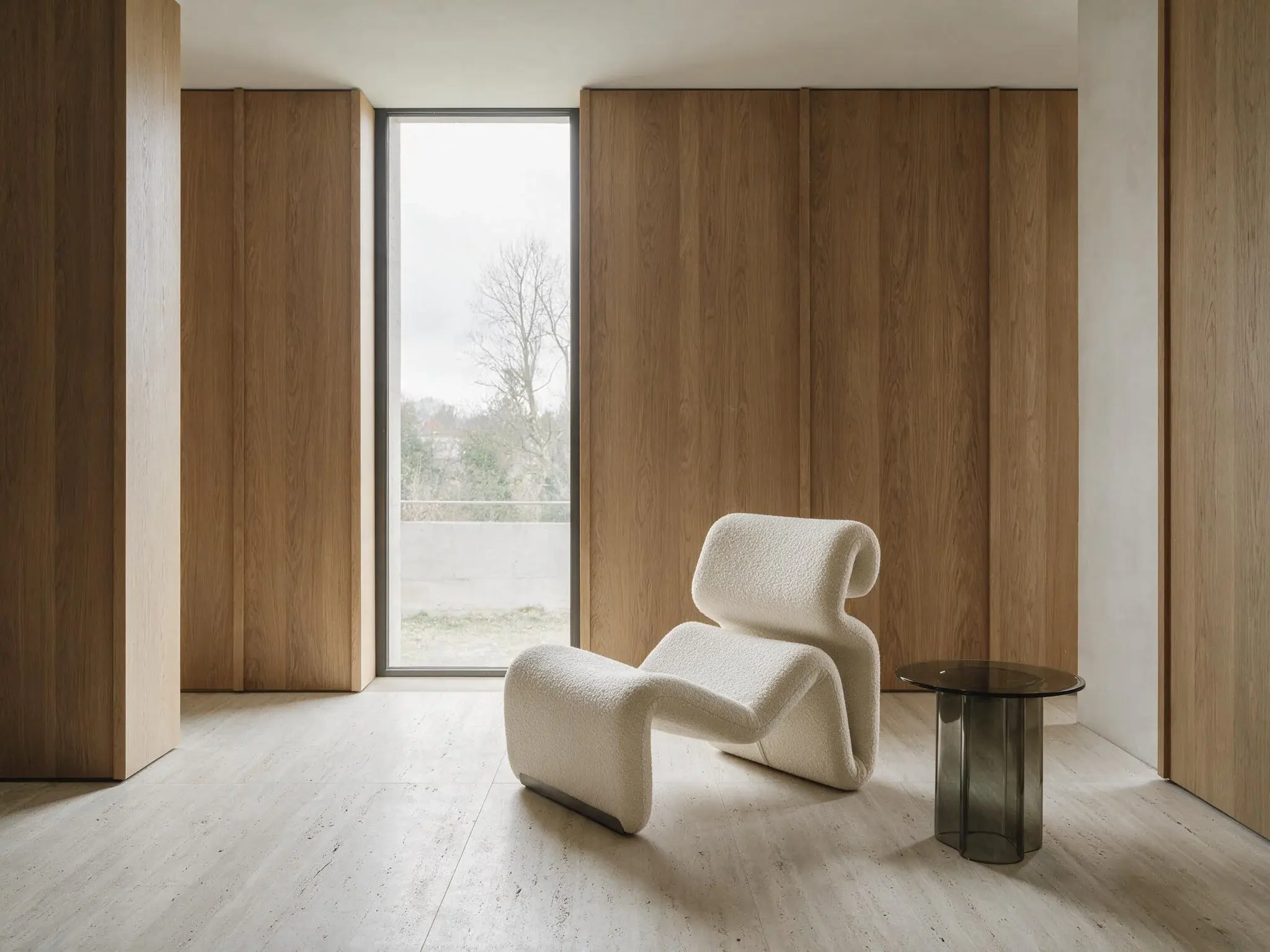
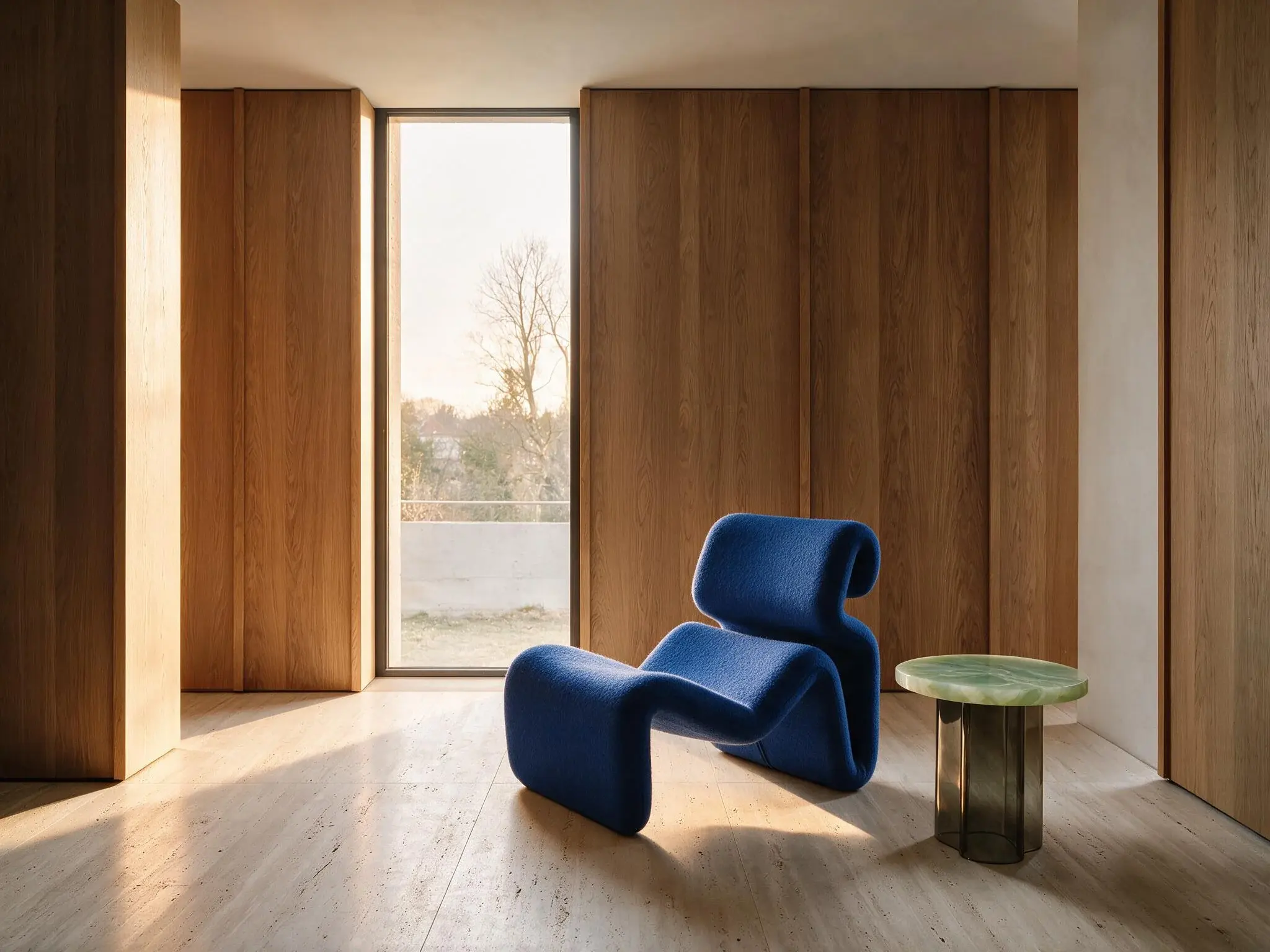
SourceSource · Image 1EditedEdited result · Image to Image
Prompt
Using Image 1 as the base, preserve the camera angle, room architecture, furniture positions, window, and overall composition. Change only the lounge chair upholstery from cream bouclé to deep cobalt wool, replace the smoked-glass side-table top with pale green onyx, and shift the scene from overcast daylight to warm late-afternoon light. Keep the result photorealistic, with reflections and contact shadows updated for the new materials and light. Do not add, remove, or move any object.
What can you make with Seedream 5.0 Pro?
Start with the deliverable, then choose the frame and prompt structure that match where the image will be used.
Deliverable
Prompt focus
Suggested canvas
Infographic or explainer
Sections, labels, diagrams, hierarchy, exact title
Input order, preserve list, change list, final visual target
Match the source or choose Custom
How to write Seedream 5.0 Pro prompts
Write the prompt like a creative brief. Explain what the image must communicate, how the frame should be organized, and which visual relationships matter most.
1. Name the deliverable
Start with the output: an infographic, poster, portrait, product image, storyboard, interface concept, or edited scene.
2. Define the subject and structure
List the main elements, their count, their positions, and the hierarchy or panel order that connects them.
3. Supply exact content
Put required titles, labels, dates, and short copy in quotation marks. Keep each text block purposeful and clearly placed.
4. Direct materials, camera, and light
Describe surfaces, texture, viewpoint, lens feeling, light direction, reflections, contrast, and color roles.
5. Add constraints and choose the canvas
State what should not appear, then select the automatic size, frame preset, or custom dimensions that match the final placement.
For edits, name the references in order and write two short clauses: “Preserve…” and “Change…”.
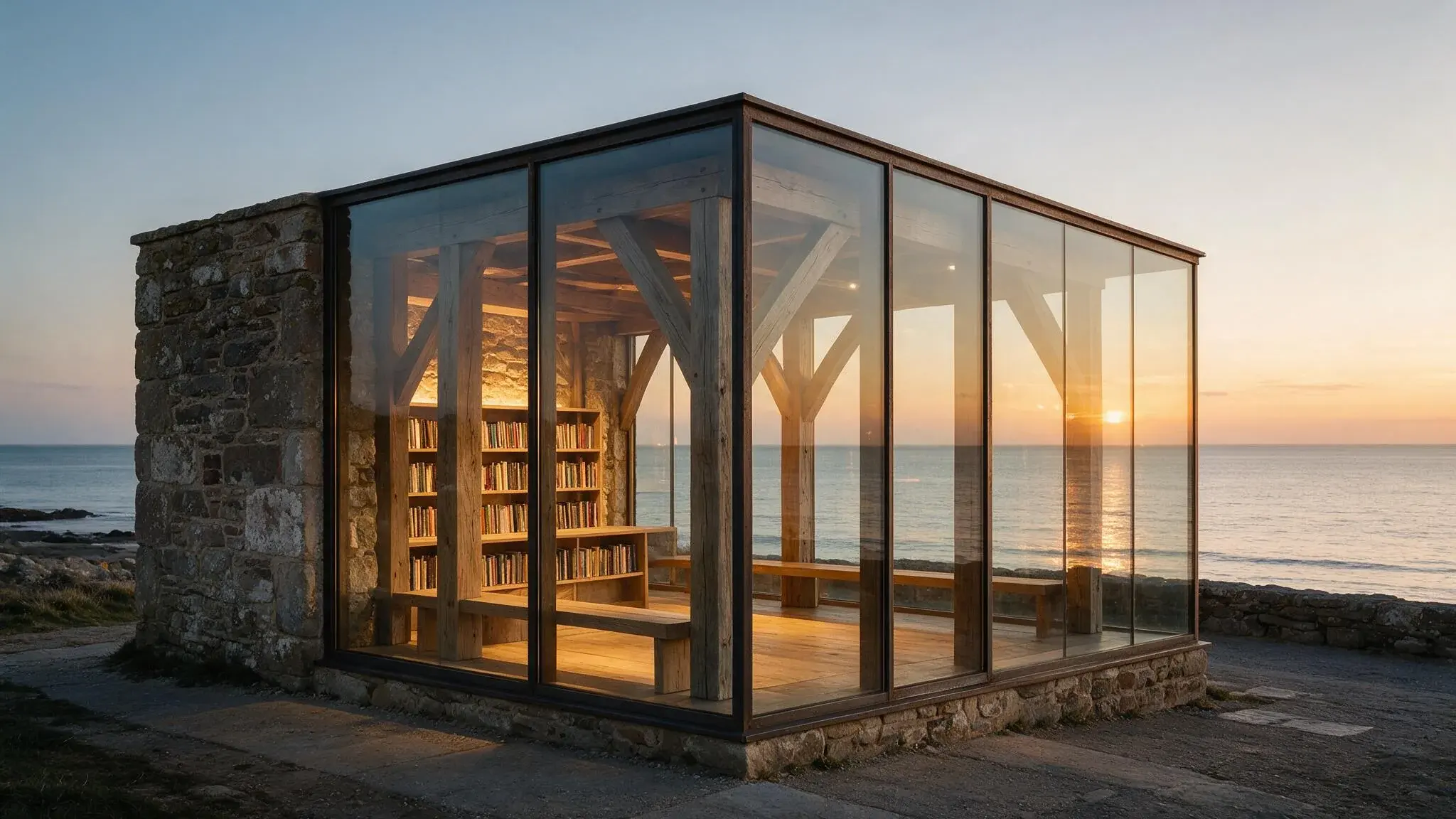
Architecture prompt example · 16:9 · JPEG
Text to Image
Create a 16:9 architectural photograph of a small coastal reading pavilion at sunset. Combine weathered stone, floor-to-ceiling glass, dark metal frames, and raw oak. Show believable interior light, layered reflections across the glass and sea, a calm horizon, precise perspective, and no people or signage.
Image to Image
Using Image 1 as the base, preserve the camera angle, room architecture, furniture positions, window, and composition. Change only the chair upholstery, side-table material, and time of day. Keep the lighting, reflections, and contact shadows physically consistent with the edited materials.
Seedream 5.0 Pro settings and image sizes
Choose one automatic size, frame preset, or custom width and height, then select JPEG or PNG. Auto 2K and JPEG are the default settings.
Setting
Available options
Automatic sizes
Auto 1K, Auto 2K
Square frames
1:1, 1:1 HD
Portrait frames
3:4, 9:16
Landscape frames
4:3, 16:9
Custom dimensions
Supported width × height
Output formats
JPEG, PNG
Default
Auto 2K, JPEGDefault
Canvas
Good starting point for
1:1
Square concepts, thumbnails, product studies
1:1 HD
Square graphics that benefit from the HD square preset
3:4
Posters, portraits, editorial covers
9:16
Stories, vertical ads, mobile-first visuals
4:3
Infographics, explainers, presentation graphics
16:9
Storyboards, interfaces, wide campaign visuals
Custom
Banners or placements with a known width and height
Automatic sizes, frame presets, and custom dimensions share one Canvas control.
Model by ByteDance Seed
Seedream 5.0 Pro compared with other image models
Choose the model around the controls and creative task you need rather than a single overall ranking.
Model
Choose it when
Key controls on this site
Seedream 5.0 Pro
You need structured layouts, multilingual design, realistic materials, or reference-guided revisions.
You need reference-rich composition, very wide or tall canvases, and broader context inputs.
0.5K–4K, 15 ratios, JPEG/PNG/WebP
Frequently asked questions
Seedream 5.0 Pro is a multimodal image generation model developed by ByteDance Seed for professional visual production. Released on July 8, 2026, it focuses on information-rich layouts, multilingual creative, realistic lighting and materials, portraits, and precisely directed image work.
Yes. Use the workbench on this page to create from a text prompt or switch to Image to Image for a reference-guided edit. Choose the canvas and output format, review the current generation cost, then submit and download the completed result.
Text to Image starts from a written creative brief. Image to Image starts from one or more reference images and an editing instruction. The Seedream 5.0 Pro edit workflow accepts up to 10 ordered references, which you can name as Image 1, Image 2, and so on.
The workbench supports Auto 1K, Auto 2K, 1:1, 1:1 HD, 3:4, 9:16, 4:3, and 16:9. You can also enter a supported custom width and height when the final placement needs a specific canvas.
Yes. Choose JPEG for a compact photographic file or PNG for graphics and text-heavy output. Auto 2K with JPEG is the default. Seedream 5.0 Pro does not use a separate Low, Medium, or High quality selector on this page.
Yes. The model is designed for high-density information layouts and supports prompting and image generation across more than ten widely used languages. Define the sections, short exact copy, hierarchy, alignment, and reading order in the prompt for a clearer result.
Write it like a creative brief: name the deliverable, subject, layout, exact copy, visual language, materials, camera, light, and constraints. For edits, list the references in order and state what must be preserved before describing the changes.
The workbench on this page provides Text to Image and Image to Image. Seedream 5.0 Pro layer separation uses a dedicated model operation and is not presented here as an editable layer workspace.
The current cost appears in the workbench before submission and can change with product configuration. Check the live quote beside the Generate action or visit the Pricing page for the latest account and credit information.
Create with Seedream 5.0 Pro
Start from a prompt or reference images, choose the canvas, and turn the brief into your next visual.